Pro! User Guide
×
Menu
Creating a Likert item
 
A Likert item allows the candidate to select only one answer from a fixed set of choices (Very Ineffective, Ineffective, Effective and Very Effective) when taking an exam.
 
To create a Likert item, you must author the item content and classify the item to specific section(s) of the item bank catalog.  You may also provide rationales and keywords for the question and answer choices, assign one or more references to the item, enter comments, and identify enemies. You may also enter data into user-defined fields for the item.  
 
Note: While creating an item, you may wish to preview and print it.
 
To create an Likert item:
 
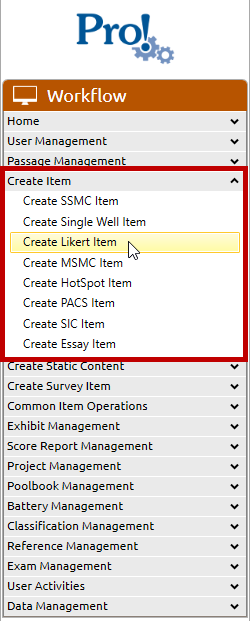
1. In the Workflow menu, click Create Item > Create Likert Item:
 
 
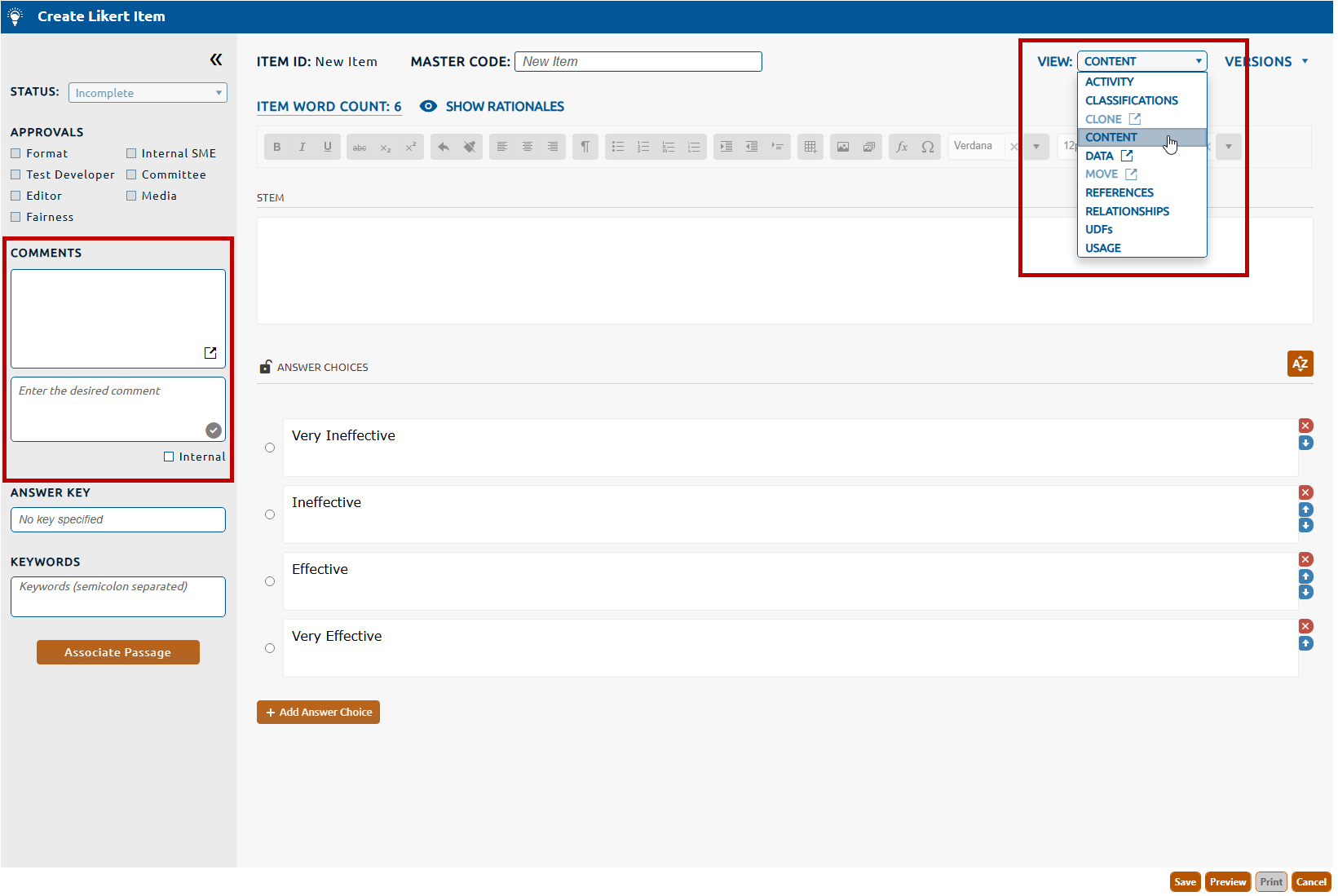
2. The Create Likert Item screen will appear (see figure below), and will default to the Content view.
 
3. Navigate through each of the following six areas  (highligthted in the figure below) to complete the Likert objective item:


Note that the Activity, Data, Clone,  Move and Usage  views contain data about existing items, and are not used to create an item.