Entering comments for an item
After authoring the content of an item, you may enter comments related to the item. The comments can be entered in the the Comments Quick View or from the Comments Dialog.
To enter a comment for an item in Quick View:
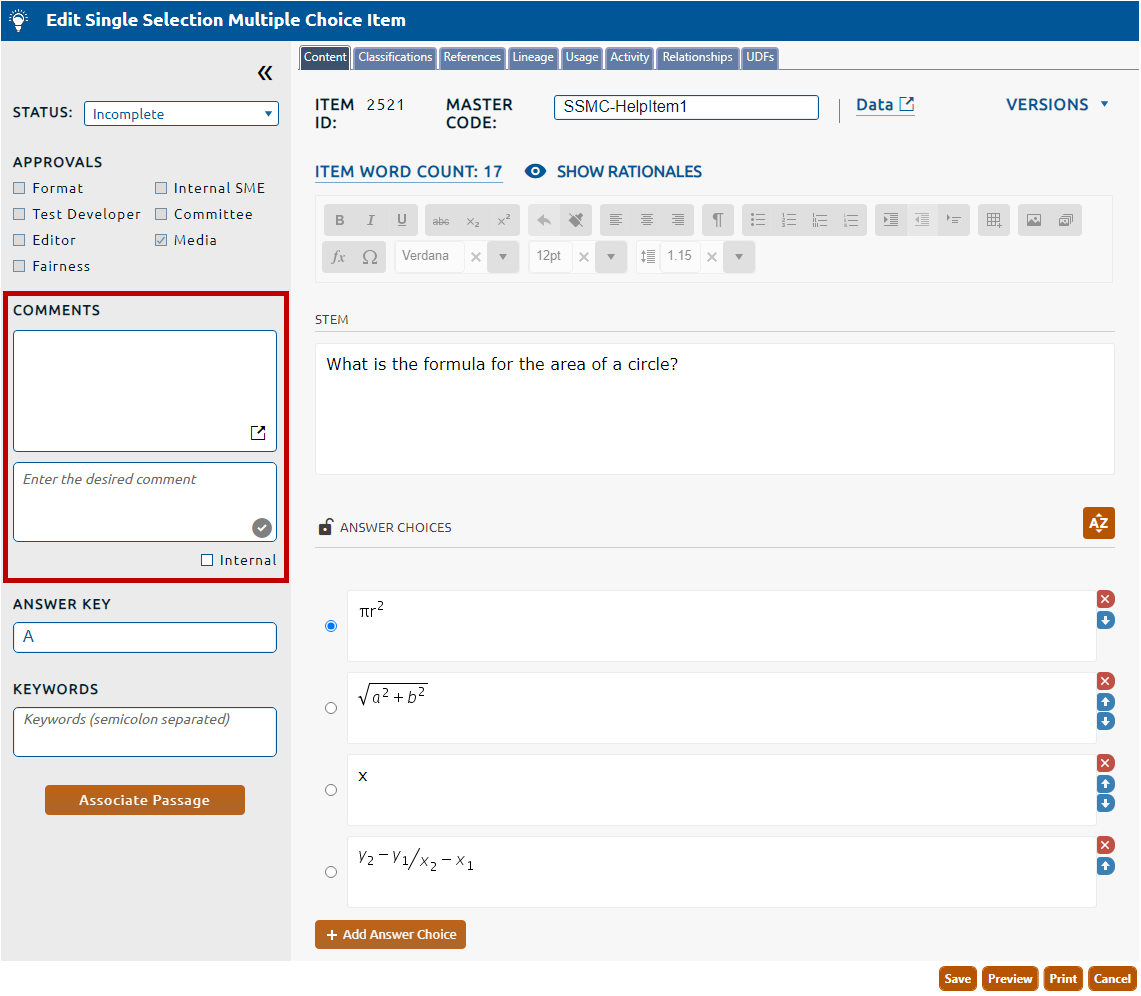
1. The Comments Quick View (highlighted in red, below), allows for text based comments to be quickly added to the item
2. Enter the desired comment in the Comments content field.
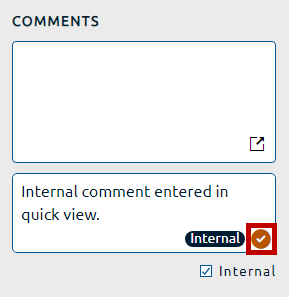
3. Checking the Internal checkbox will identify the comment as one that is only viewable within Pro!. External project members will not have access to view this comment. Leaving the box unchecked allows the comment to be visible to all.
4. Clicking the check mark icon (highlighted in red, above), will add the comment and save it to the item.
To enter a comment for an item in Dialog:
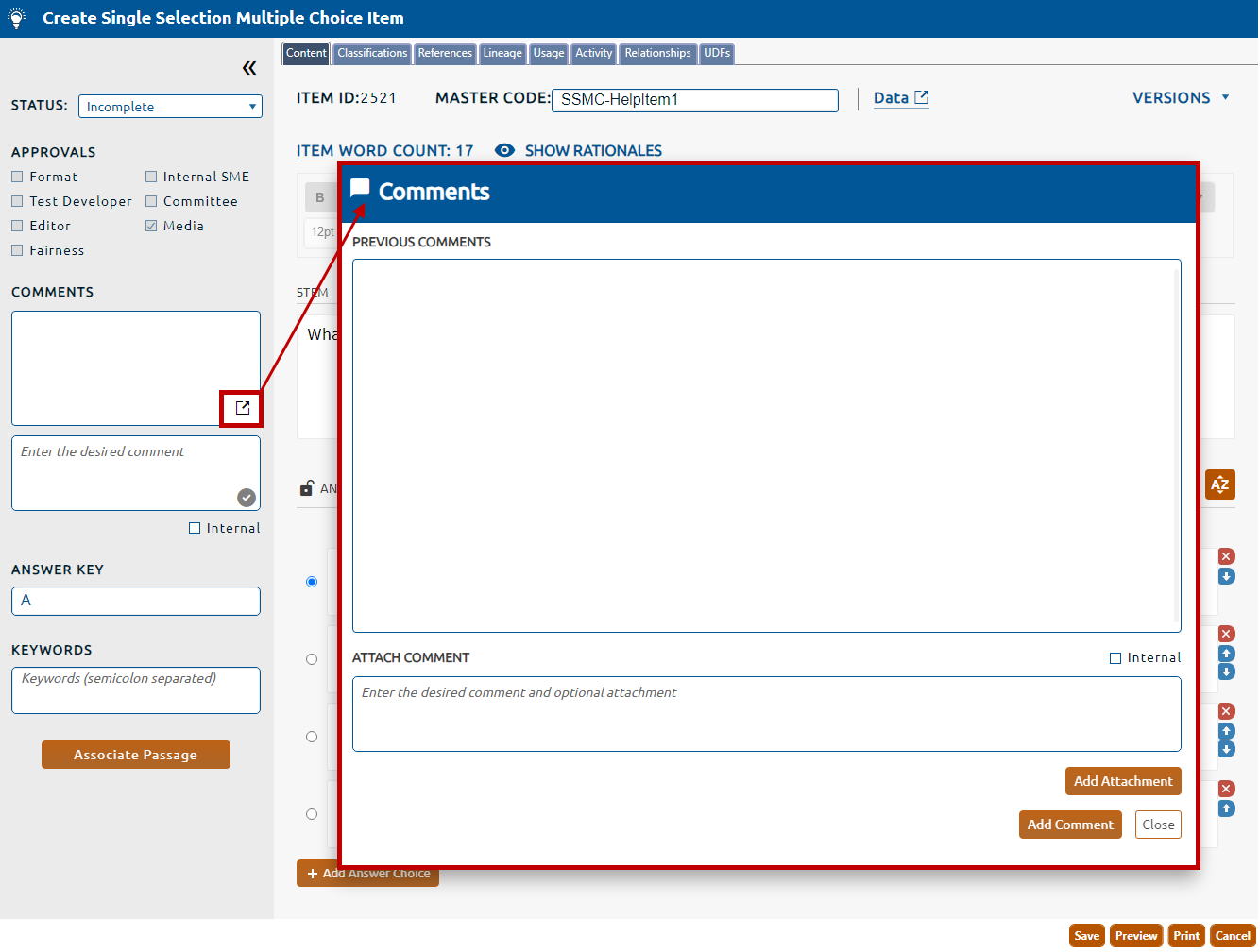
1. In the Comments Quick View, select the dialog icon (highlighted in red, below). This will open the Comments dialog.
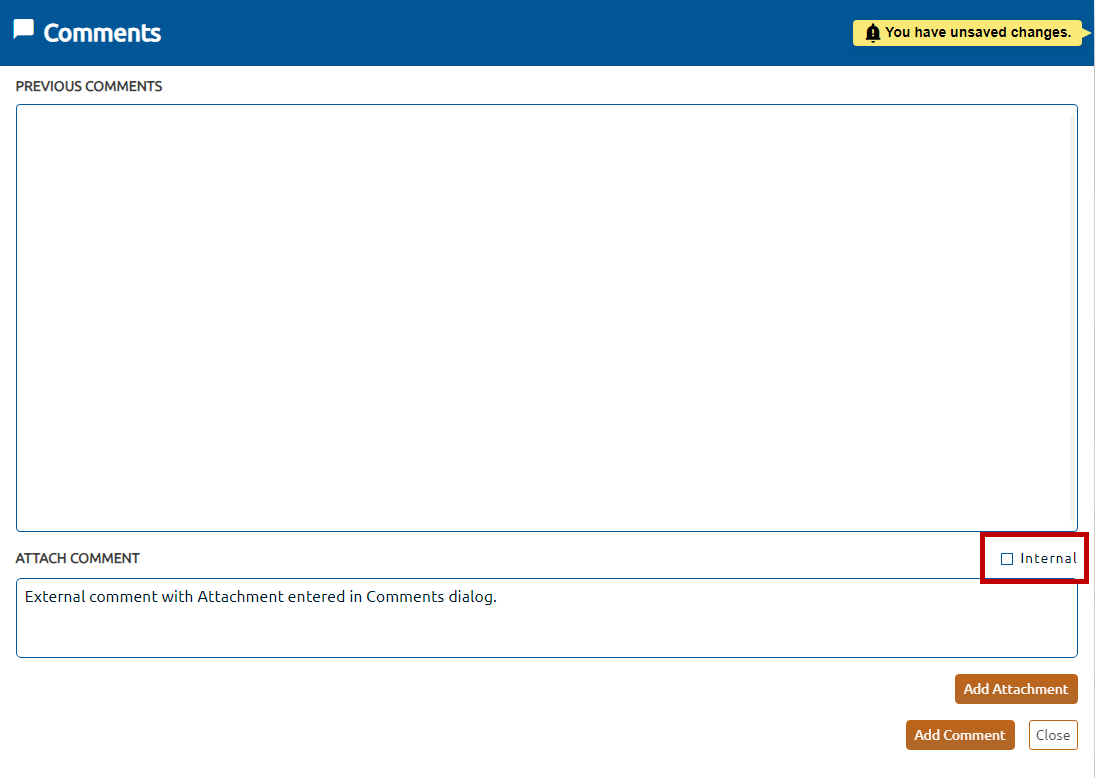
2. Enter the desired comment in the Attach Comment content field.
3. Checking the Internal checkbox (highlighted in red, below), will identify the comment as one that is only viewable within Pro!. External project members will not have access to view this comment. Leaving the box unchecked allows the comment to be visible to all.
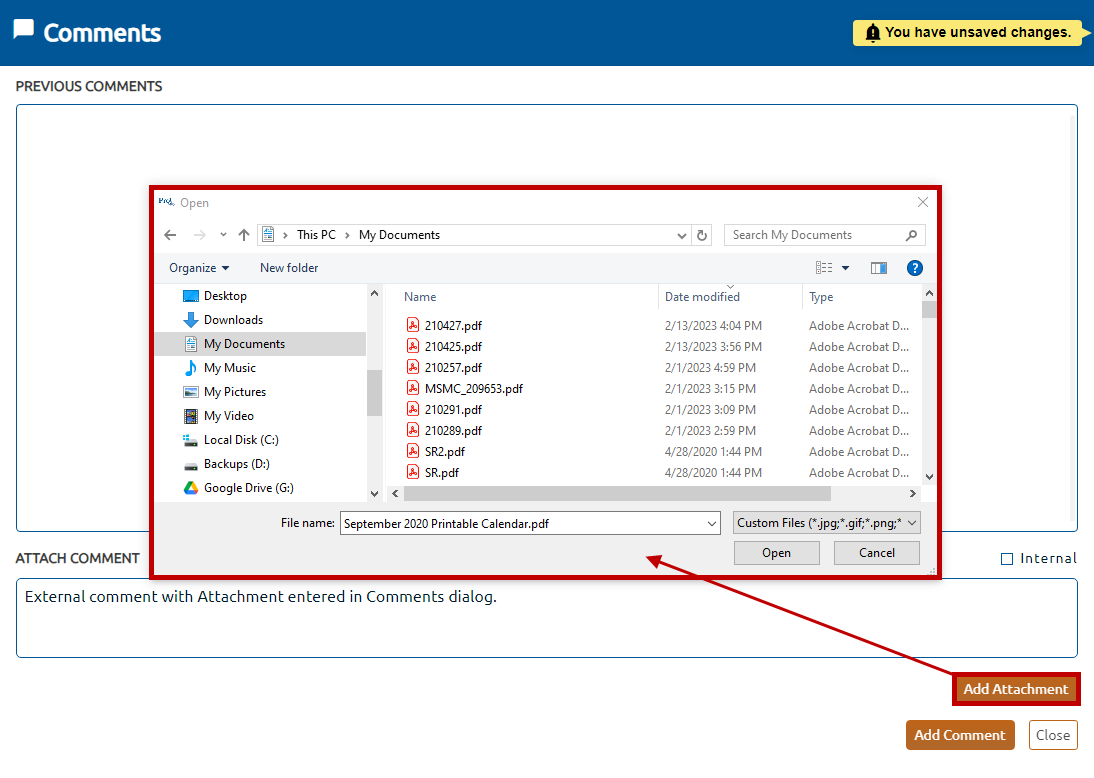
4. Adding an attachment to the comment is optional. If desired, click the Add Attachment button (highlighted in red, below), and use the Open dialogue box to upload a document from a locally mapped drive.
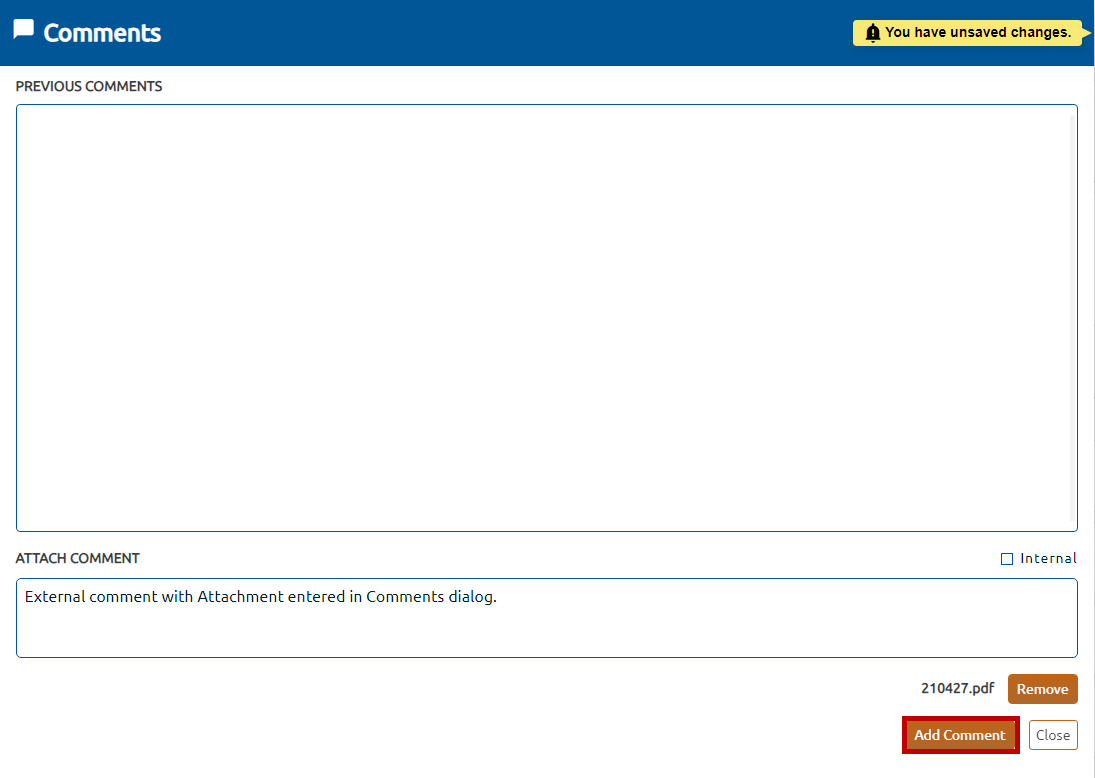
5. Click the Add Comment button (highlighted in red, below), to add and save the comment to the item.
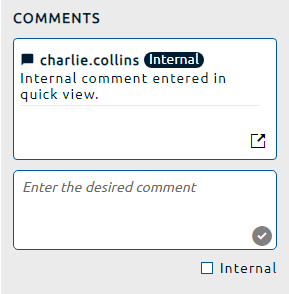
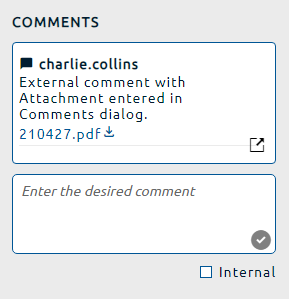
6. The comment will be added to the item's Quick View.