Cloning an HTML item
If authorized, you have the option of cloning (copying) an item. You can clone an item into the same section, a different section in the same battery, or a different battery altogether. You must have authorization to use the clone feature, plus authorization to access both the parent item's section and battery, and the destination's section and battery.
After cloning, the original item (parent) and the copied item (child) can evolve separately without having any impact upon one another. Later, a child can become the source for another cloning. In that case, the child now becomes a parent, and the copy becomes its child.
The act of cloning copies the parent's stimulus and stem, options, rationales, and discrete meta-data (key, item writer ID, etc.) to the child. Cloning does not copy the parent item's statistics or forms history.
During cloning, you have the option of choosing a new status for the parent item, but you must choose a status for the child item. Each battery has a defined set of clone-in statuses.
To clone an HTML item:
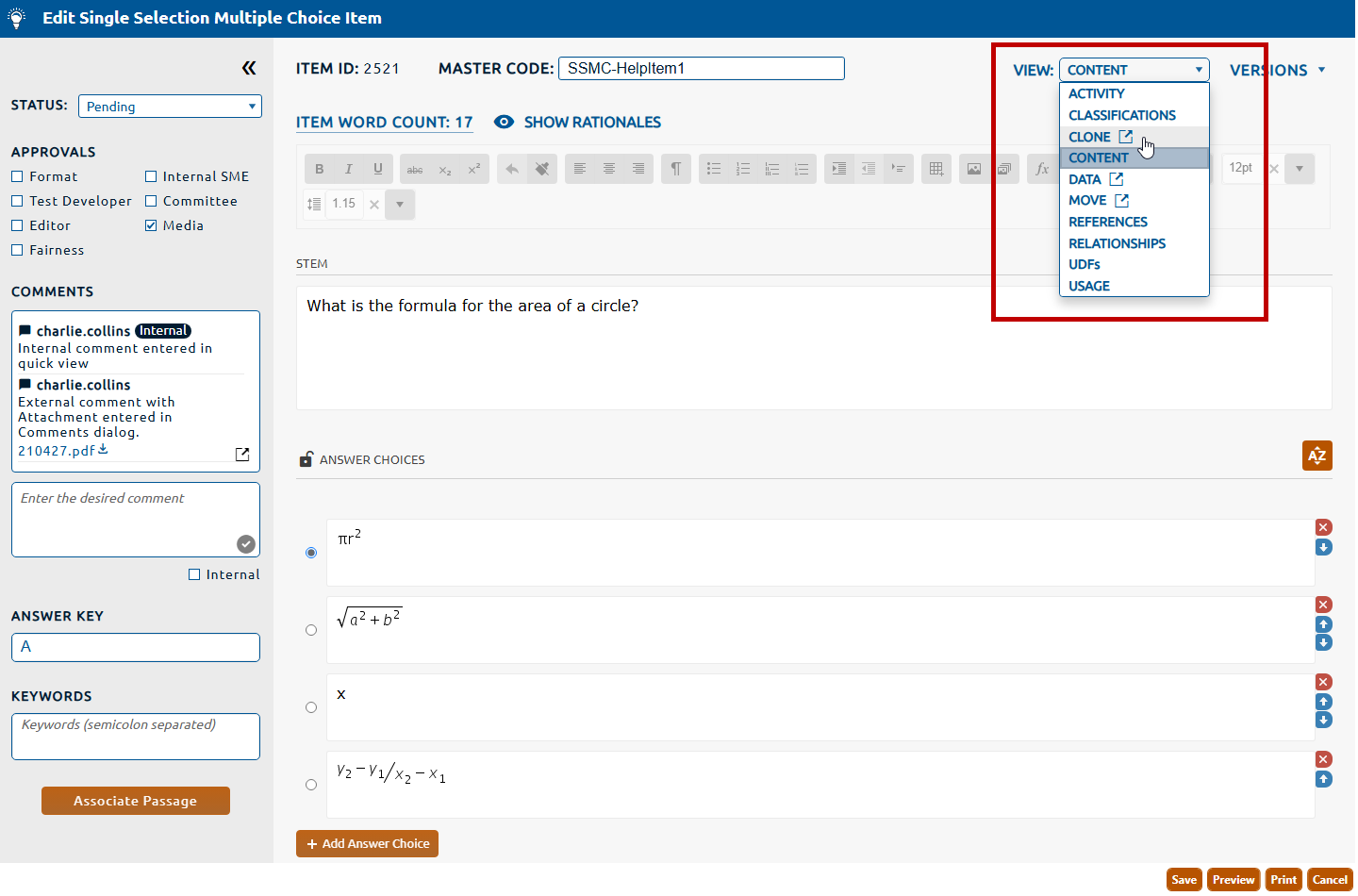
2. Select Clone from the View dropdown (highlighted in red, below).
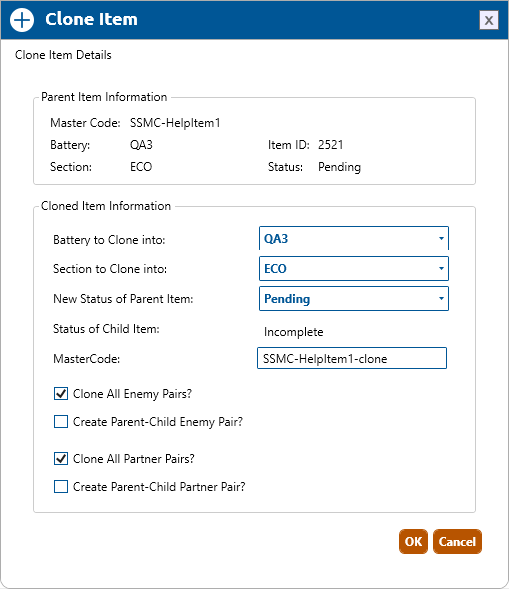
3. The Clone Item dialog box will appear:
4. Chose the battery and section you wish to clone the item into.
5. The Status of Child Item value is set to Incomplete
6. The Master Code of the new child item defaults to the name of the parent item with "-clone" appended. This value can be updated to any unused value.
7. Setting relationships for the child item:
-
Clone All Enemy Pairs? (Selected by default): Clones all enemy pairs of the parent item to the child.
-
Create Parent-Child Enemy Pair?: Creates a enemy pair of the child for the parent and the parent for the child.
-
Clone All Partner Pairs? (Selected by default): Clones all partner pairs of the parent item to the child.
-
Create Parent-Child Partner Pair?: Creates a partner pair of the child for the parent and the parent for the child.
Note: Cannot make the child both a enemy and a partner of the parent.
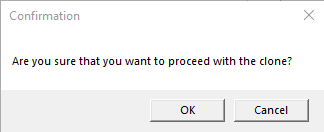
8. Click the OK button. A Confirmation dialog will appear:
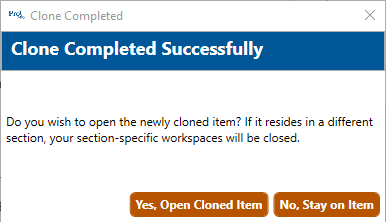
9. Click the OK button. The Clone Completed dialog box will appear, allowing you to navigate to either the parent or child item: