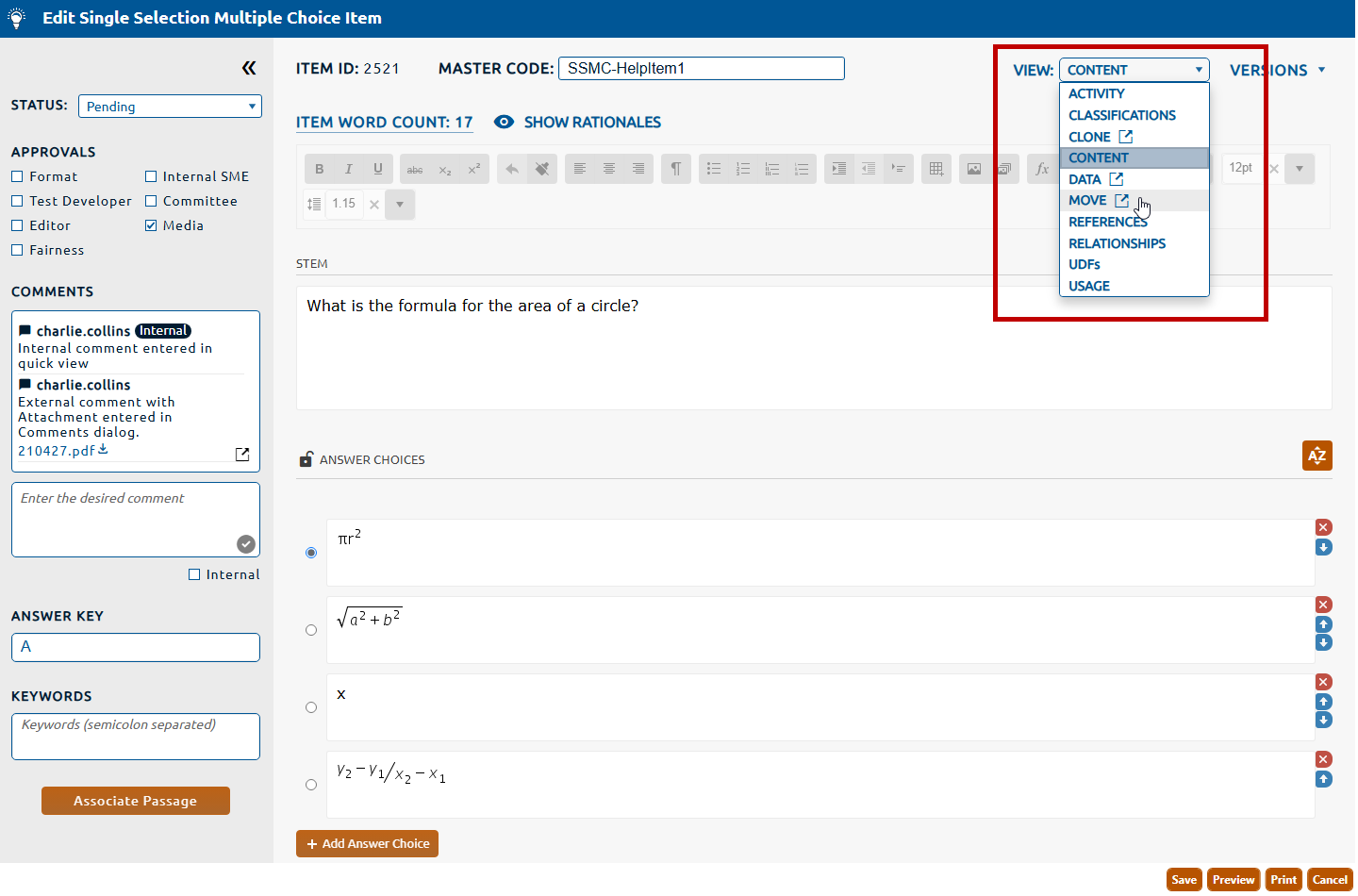
2. Select Move from the View dropdown (highlighted in red, below).
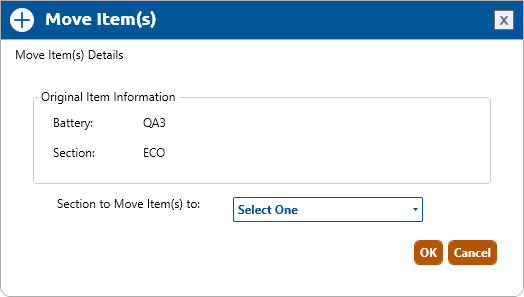
2. The Move Item(s) dialog is opened.
3. Select the new section from the Section to Move Item(s) to dropdown and click OK.
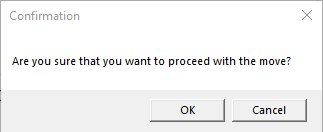
4. Click OK in the Confirmation dialog to complete the move.
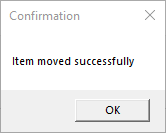
5. Click OK in the Confirmation dialog to dismiss. The item will now be in a content locked status with the lock indicating the new section. Switching sections will allow the user to continue editing the item in that section.