Creating passages
Pro! provides the ability to create and associate passages to multiple examination items. Use the links below for detailed guidance.
|
|
Note: While creating an passage, you may wish to preview it.
|
To create a passage:
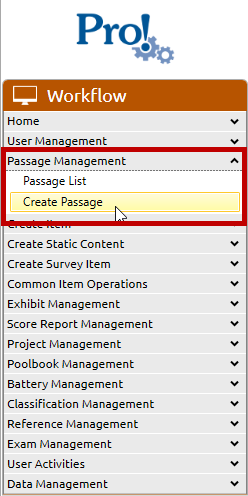
1. In the Workflow menu, click Passage Management > Create Passage:
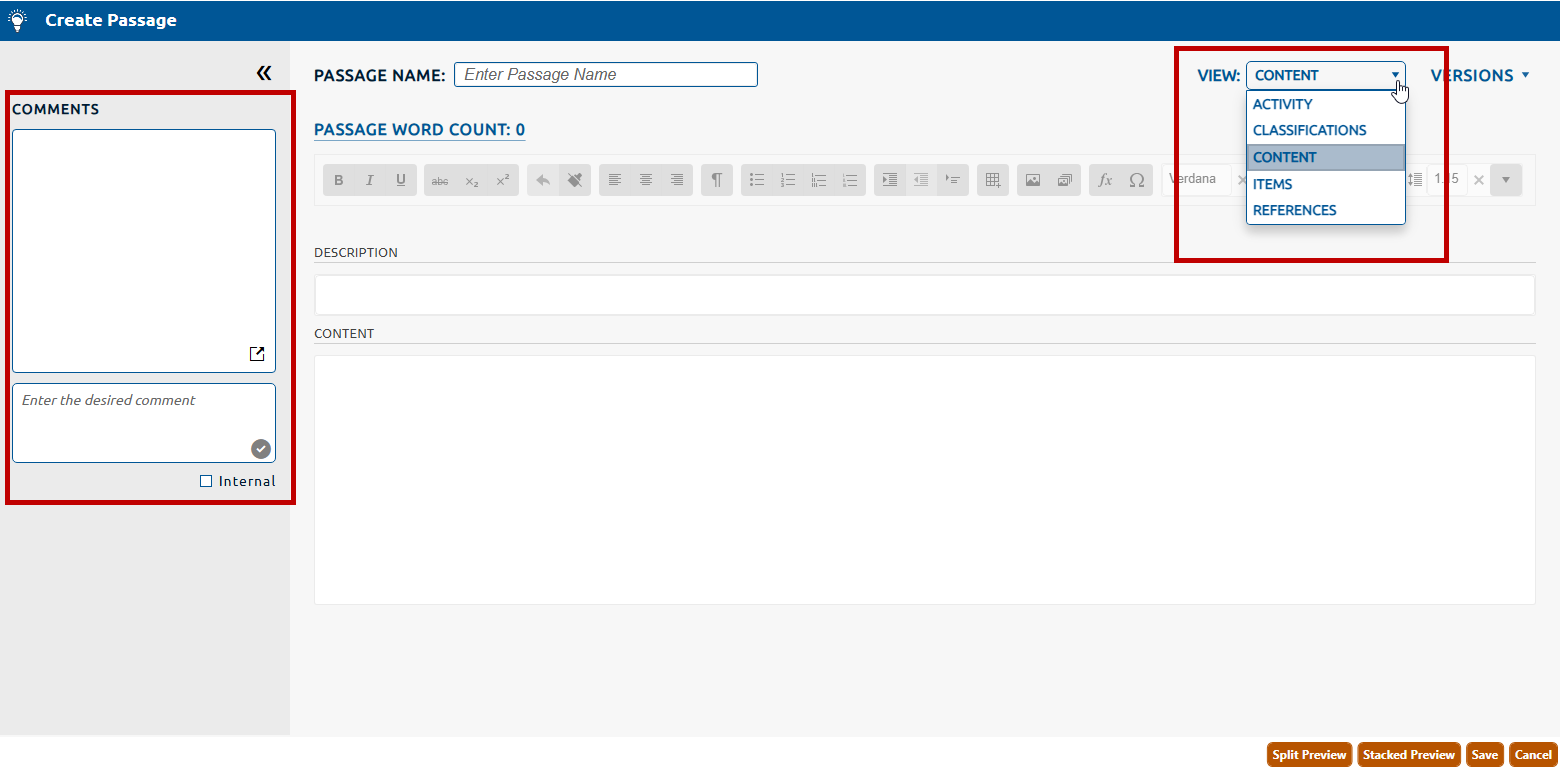
2. The Create Passage screen will appear (see figure below), and will default to the Content view.
3. Use the View dropdown to access pages that allow for additional passage definition:
Note that the Activity page contains data about existing passages, and is not used to create a passage.
4. The left side pane has a Comments region that allows the author to enter comments pertaining to the passage.