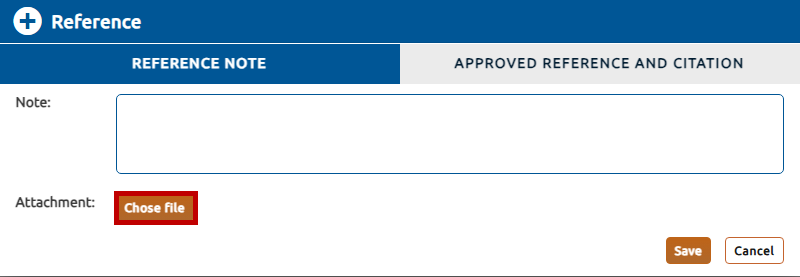
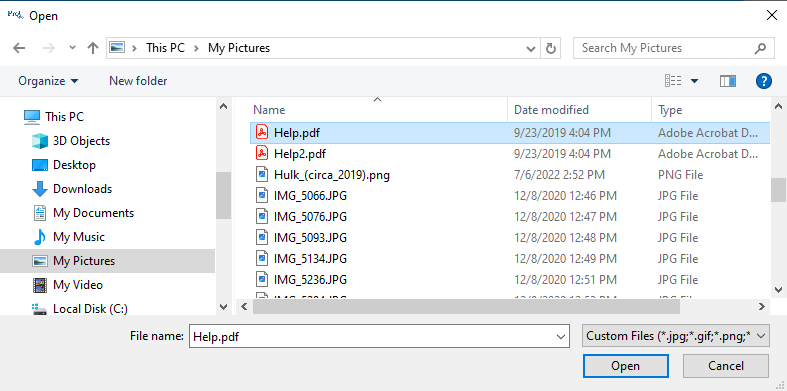
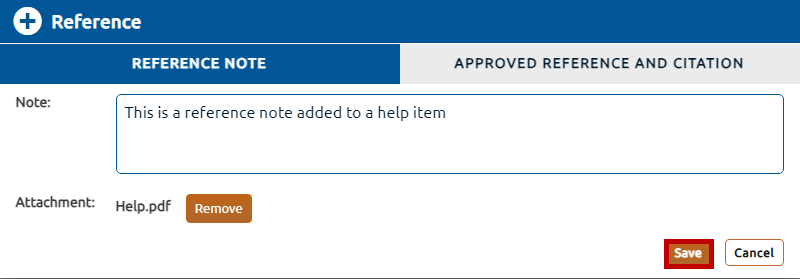
To add attachments to your note, click the Chose file button (highlighted in red, above) then browse the local or network drive to find the desired file (.jpg, .gif, .png, .bmp, and .pdf files only):
Click the Open button to attach the file.
To assign the reference note click Save (highlighted in red, below). The reference note assignment will be saved to the item.
Choose an approved reference
To choose an approved reference:
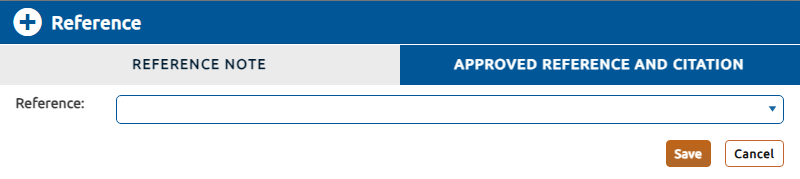
Click the Approved Reference and Citation tab.
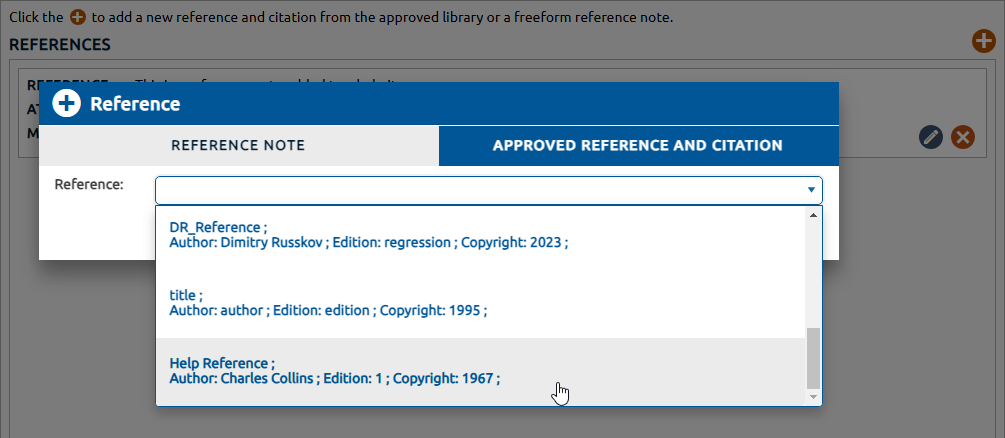
Select an existing reference from the Reference dropdown menu.
Note:Click here for information on creating and managing references in the reference library.
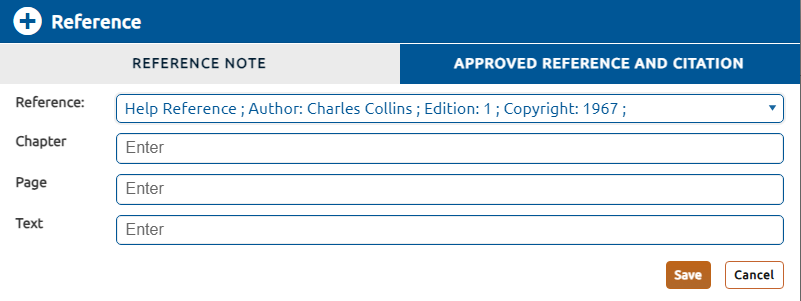
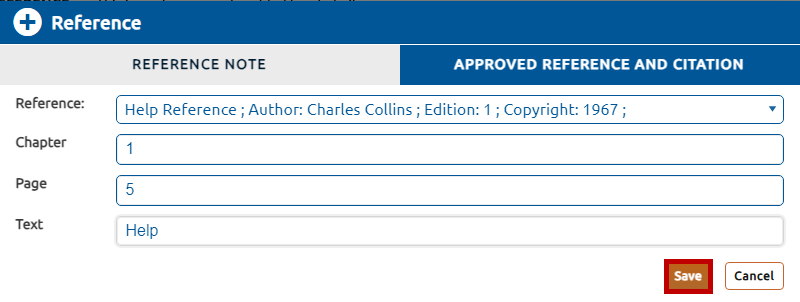
After selecting the reference, any citations defined for the reference will be displayed:
To add custom citation(s) to the reference, populate the associated text boxes with the appropriate values. Some citations may be required. If a value is not provided for a required citation, a prompt will be displayed on the save attempt.
To assign the approved reference click Save (highlighted in red, above). The approved reference assignment will be saved to the passage.
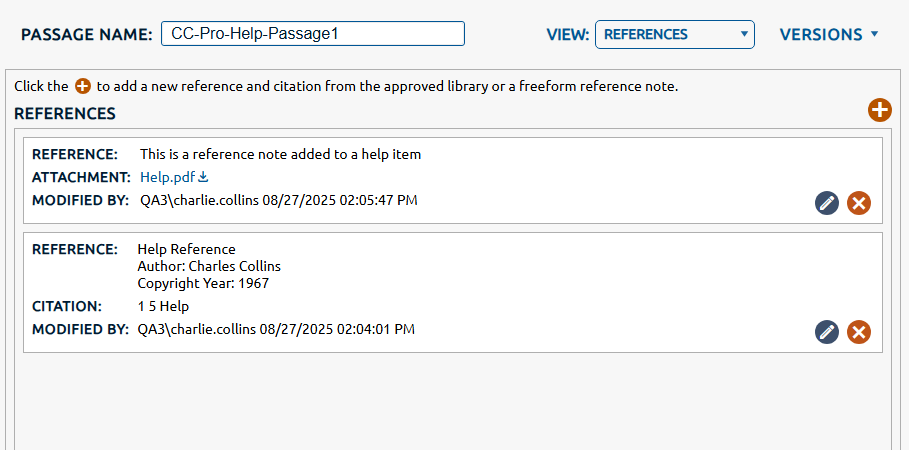
4. Saved references will be displayed in a list below References.
5. You may assign additional approved references or reference notes to the passage by repeating the steps above.