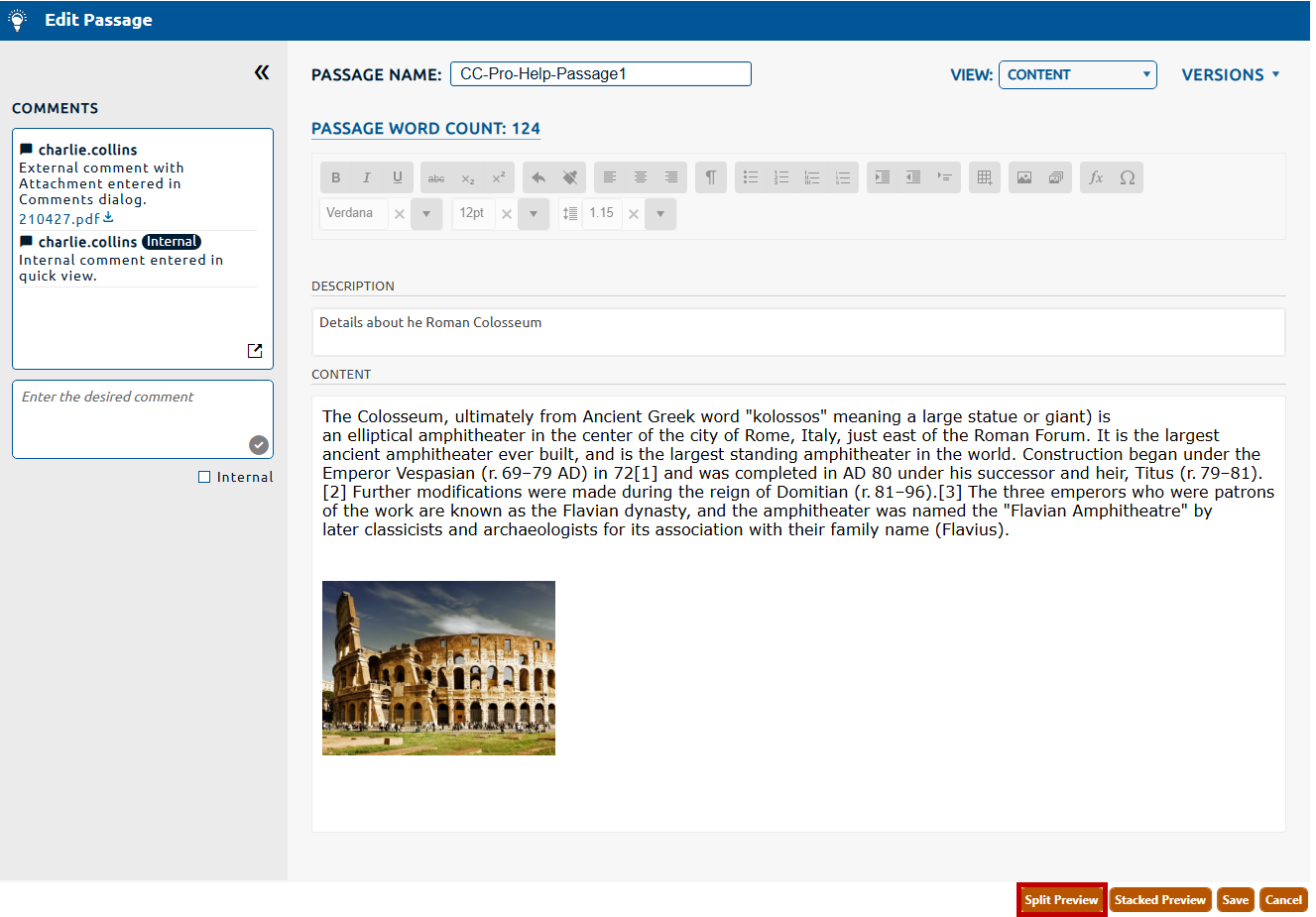
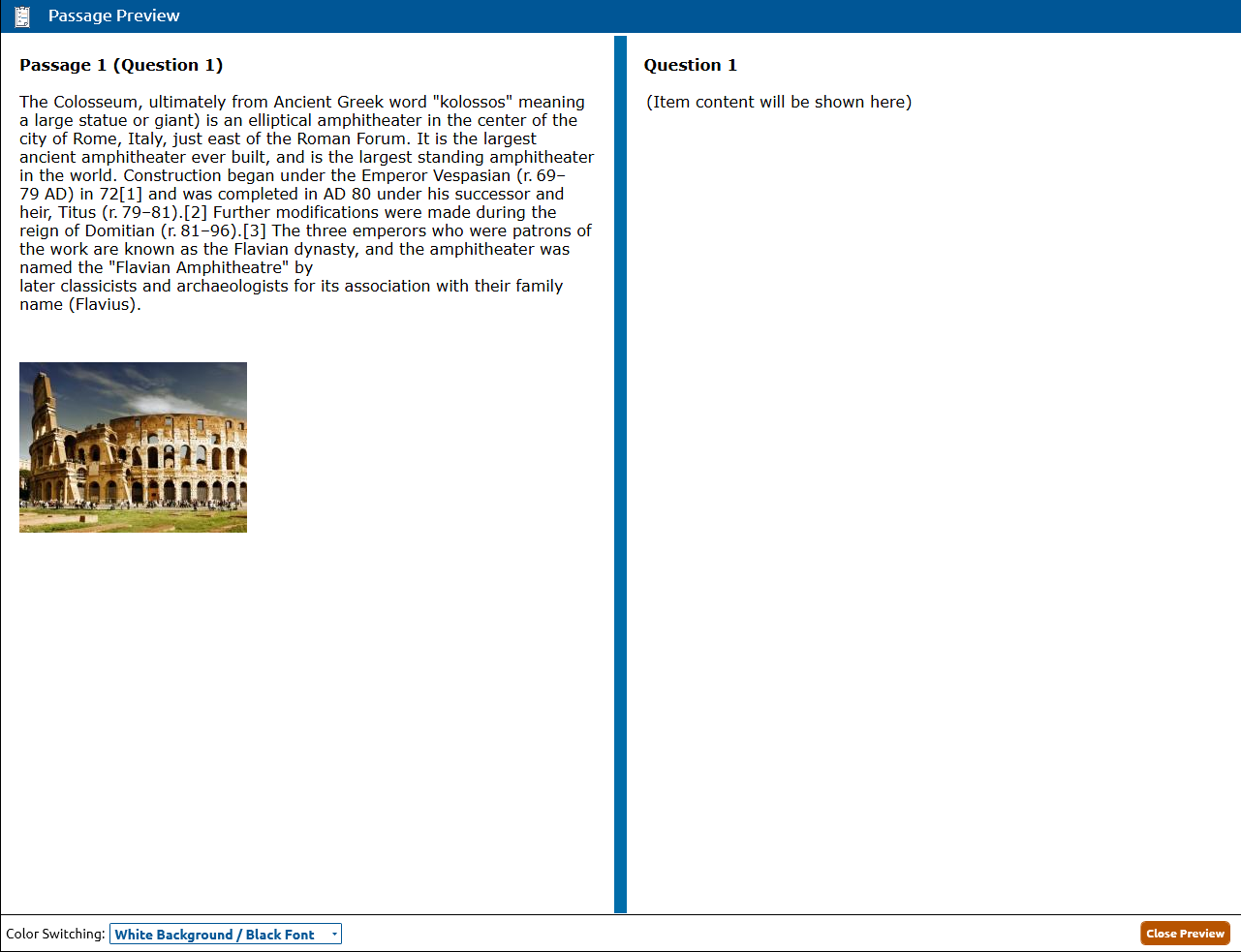
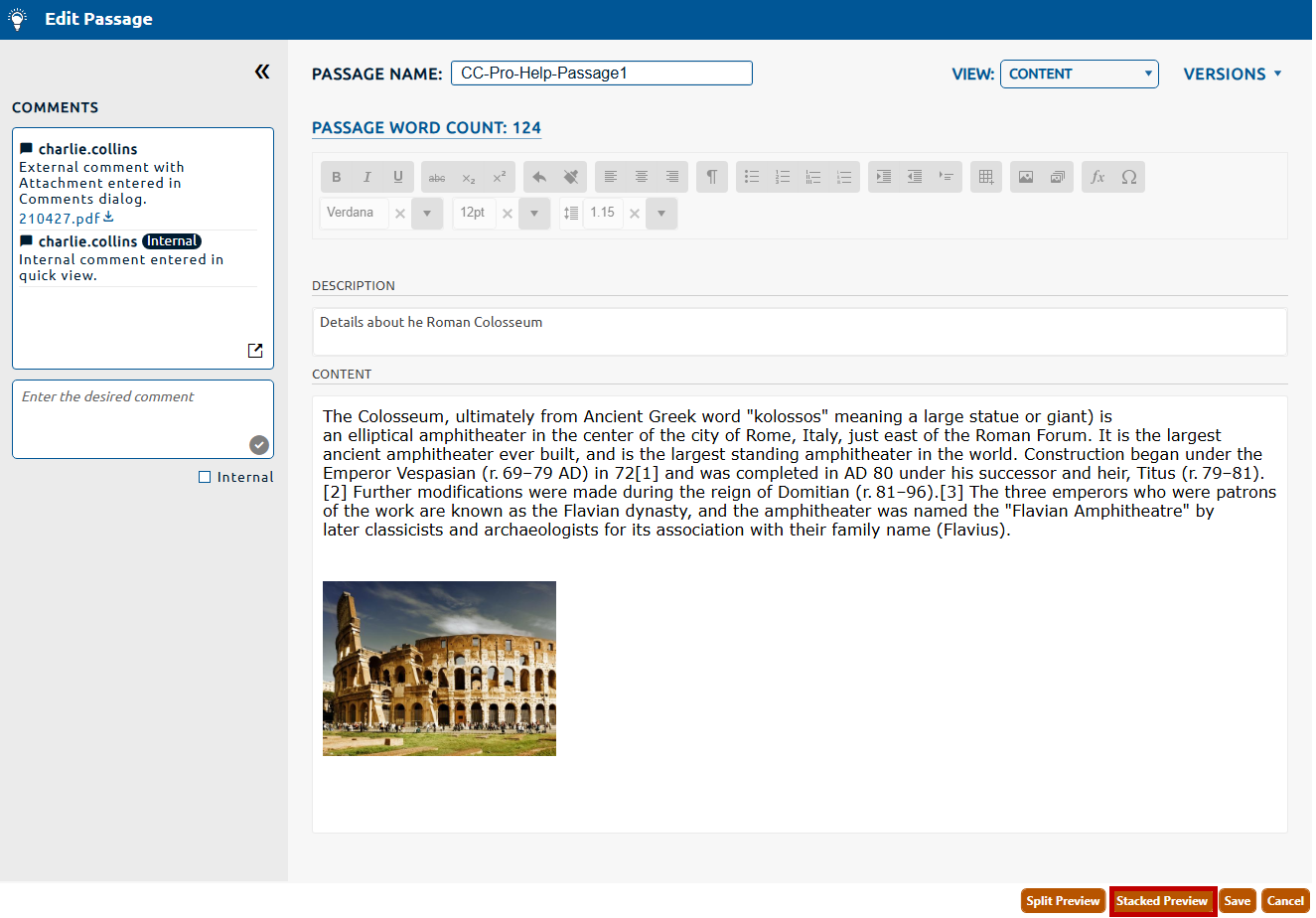
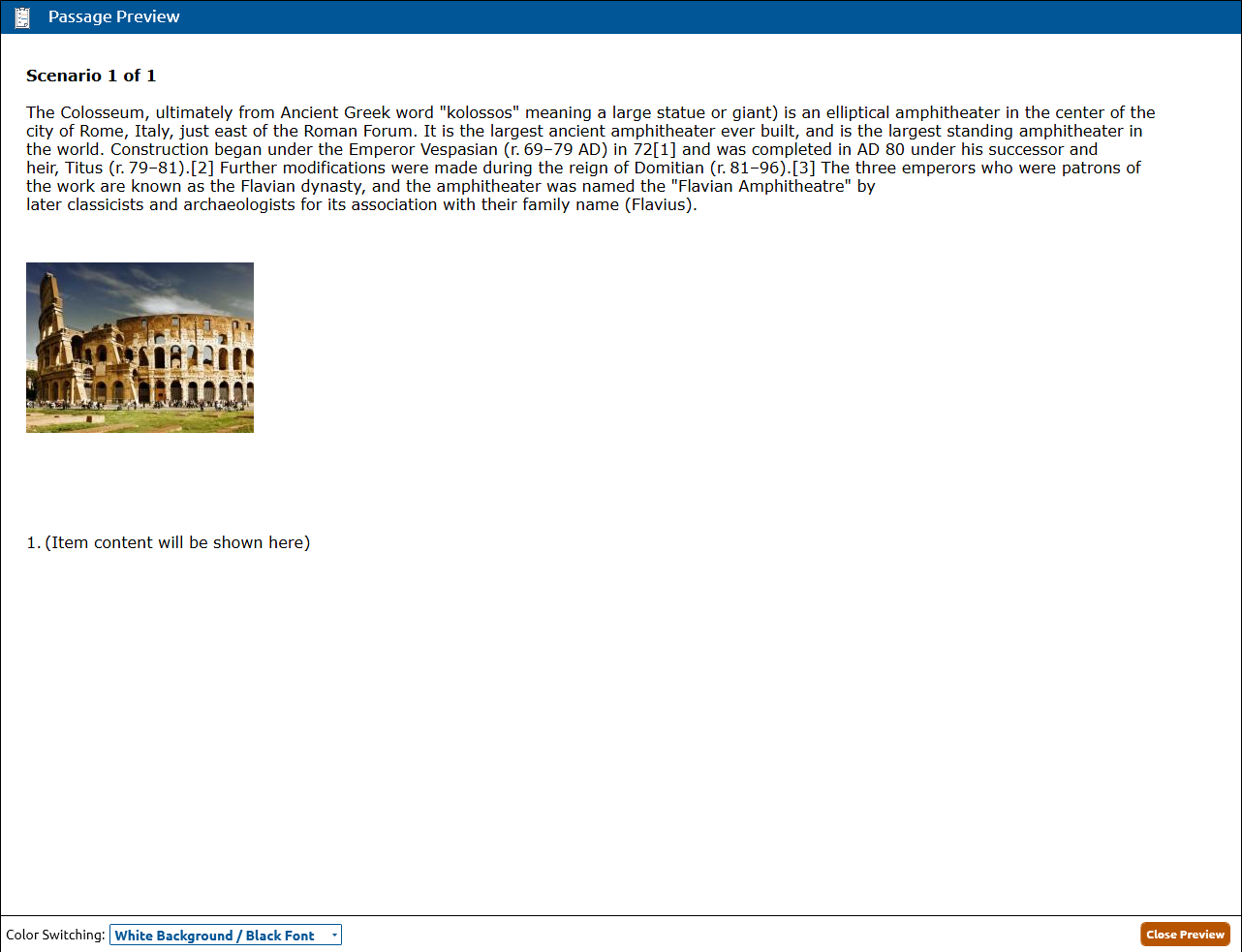
While creating, viewing, or editing a passage, you may wish to preview it onscreen. The preview shows how the passage will appear to an exam taker. There are two preview options for a passage, split and stacked.
To preview a passage in split mode:
1. Open a passage.
2. Click the Split Preview button (highlighted below).
2. The Passage Preview dialog will open with the passage displayed in the left pane. Click Close Preview to shut passage preview window.
To preview a passage in stacked mode:
1. Open a passage.
2. Click the Stacked Preview button (highlighted below).
2. The Passage Preview dialog will open with the passage displayed above the associated item content. Click Close Preview to shut passage preview window.
To switch the color of the preview in either mode:
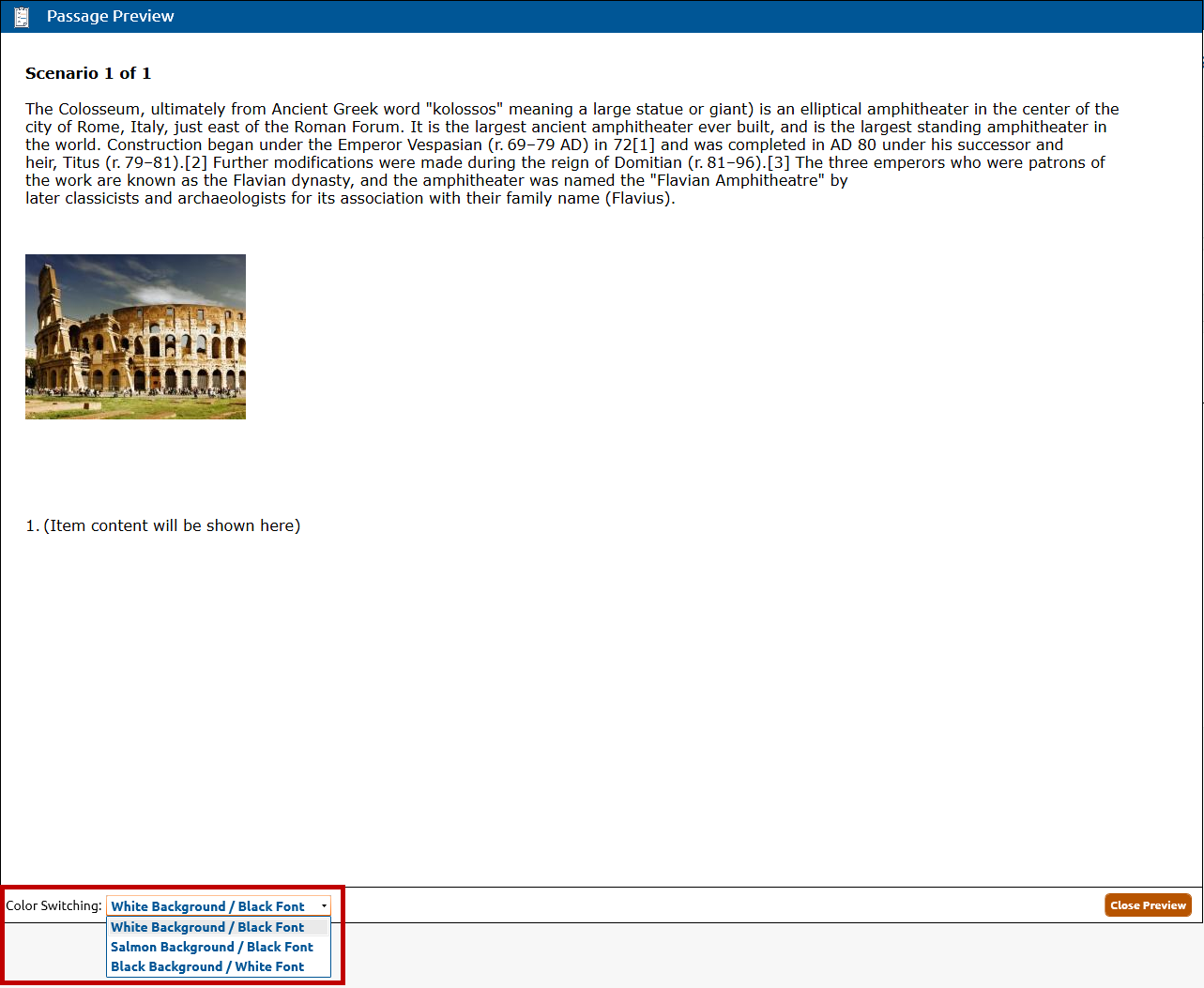
1. With the Passage Preview dialog open in either mode, Click the Color Switching dropdown and select from the list of defined background\text color combinations.
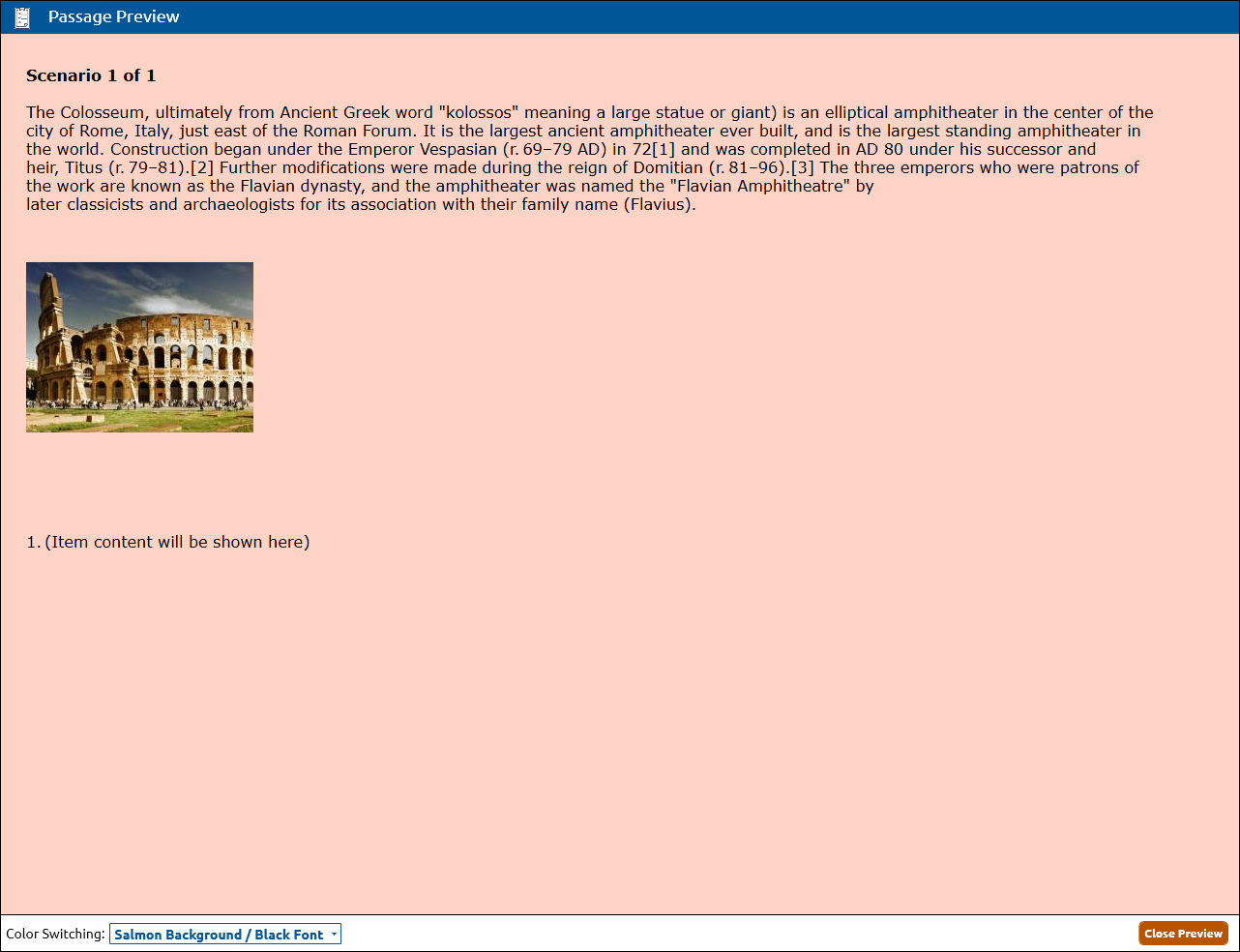
2. The Passage Preview dialog will refresh with the selected combination (The example below shows Salmon Background/Black Font).