The passage creation process supports the easy association of existing SSMC and Likert items. Association can be made for a single item or in bulk for many items.
To associate an item to a passage:
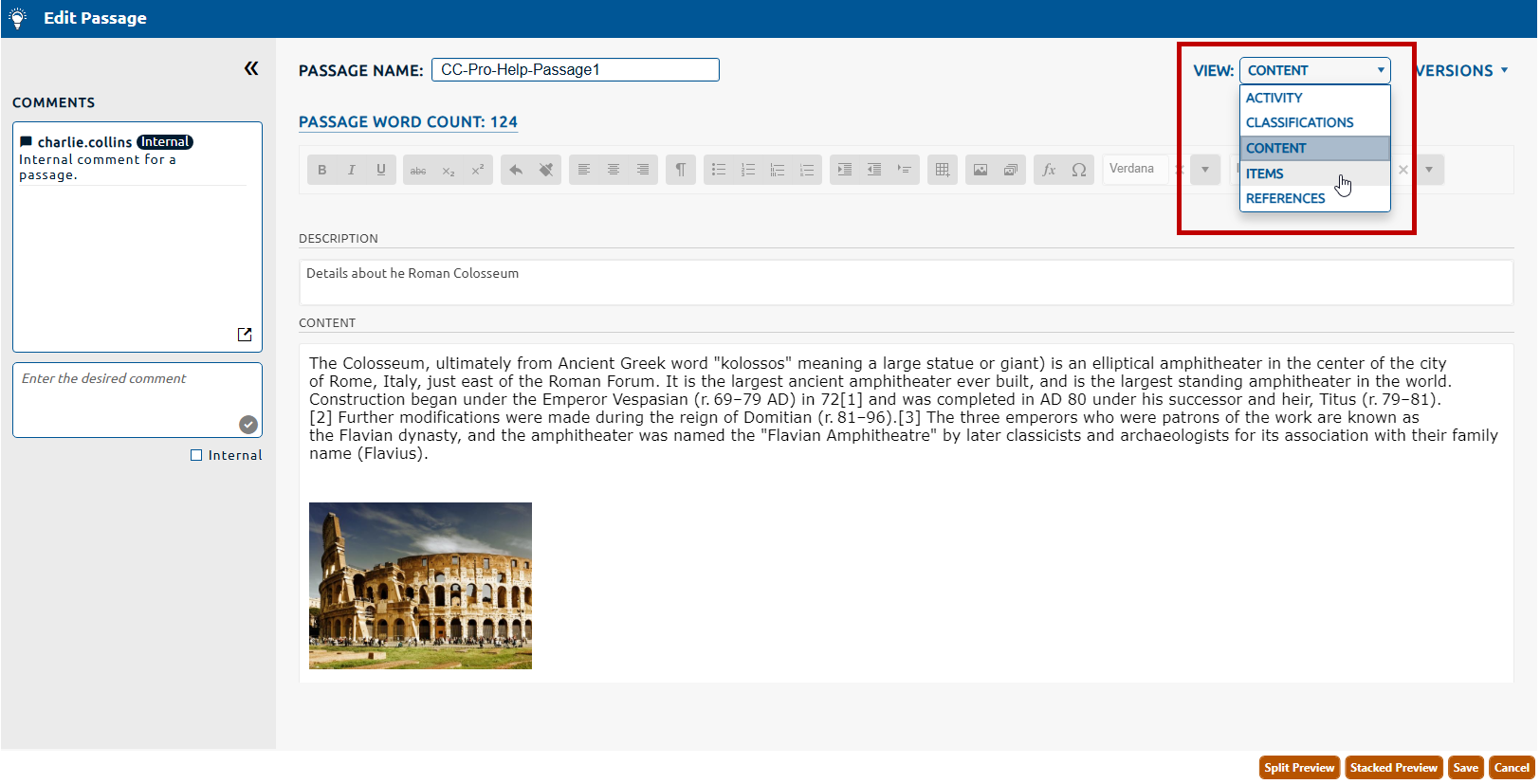
1. Navigate to the Items page (highlighted below) by selecting it from the View dropdown (highlighted in red, below).
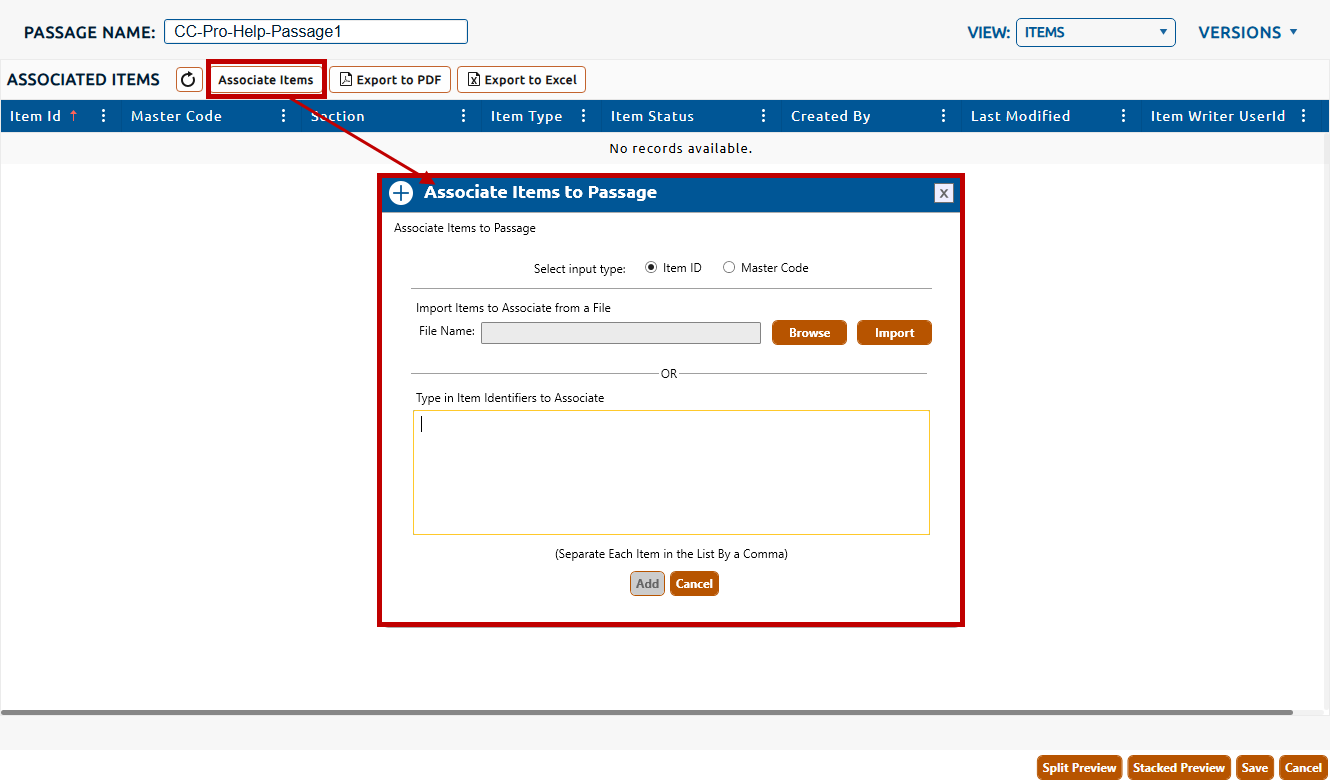
2. The Items page is a tabular display of any associated items. To create item associations, click the Associate Items button (highlighted in red, below). This will open the Associate Items to Passage dialog.
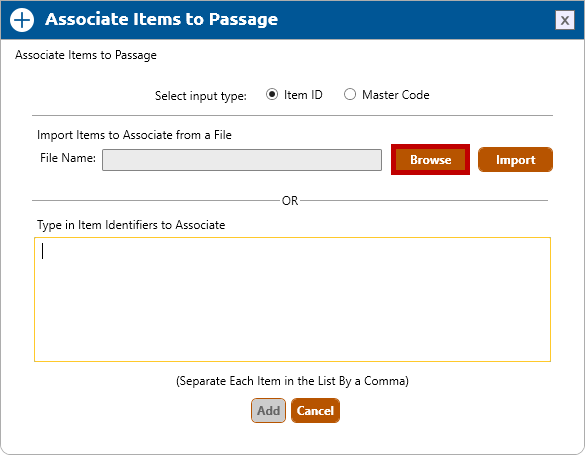
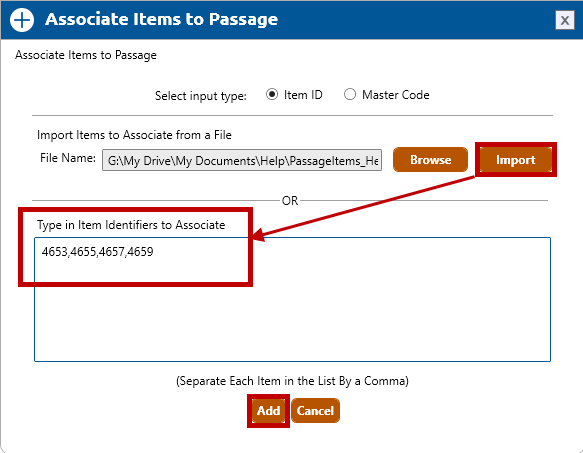
3. Select the input type by clicking the radio button for Item ID (selected by default) or Master Code.
4. The item list can be imported from a comma delimited file by clicking the Browse button.
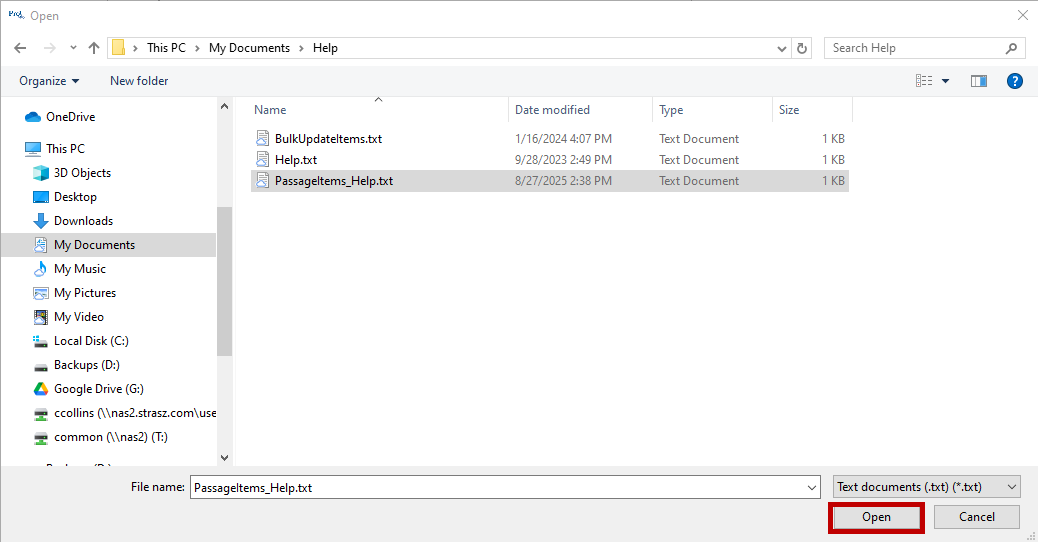
5. This opens the Open dialog to allow for file selection (.csv or .txt) from a locally mapped directory. Click Open to complete selection.
6. The selected file will populate in the File Name field. Clicking Import will populate the Type in Item Identifiers to Associate with the list of items from the file. Alternatively, the list of items can be typed directly into this field.
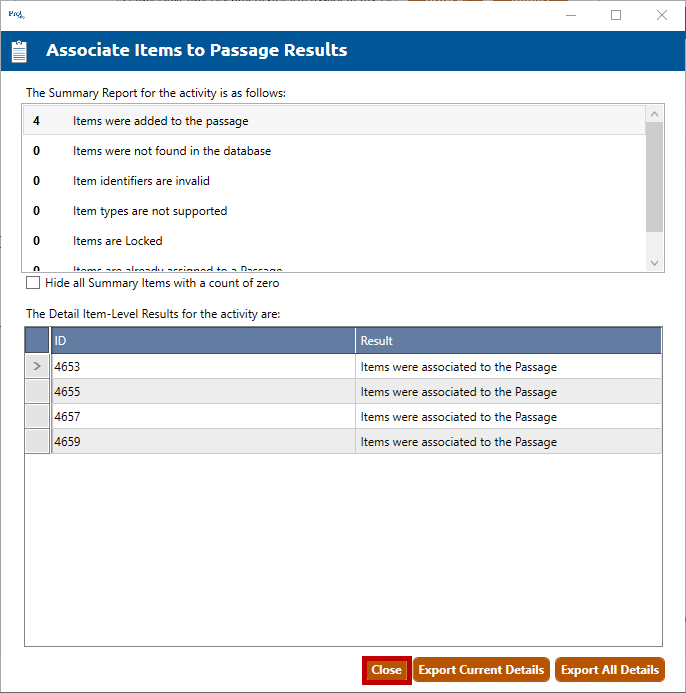
7. Clicking Add will run the item association process. The Associate Items to Passage Results dialog will display the item association results. Click Close to dismiss the dialog.
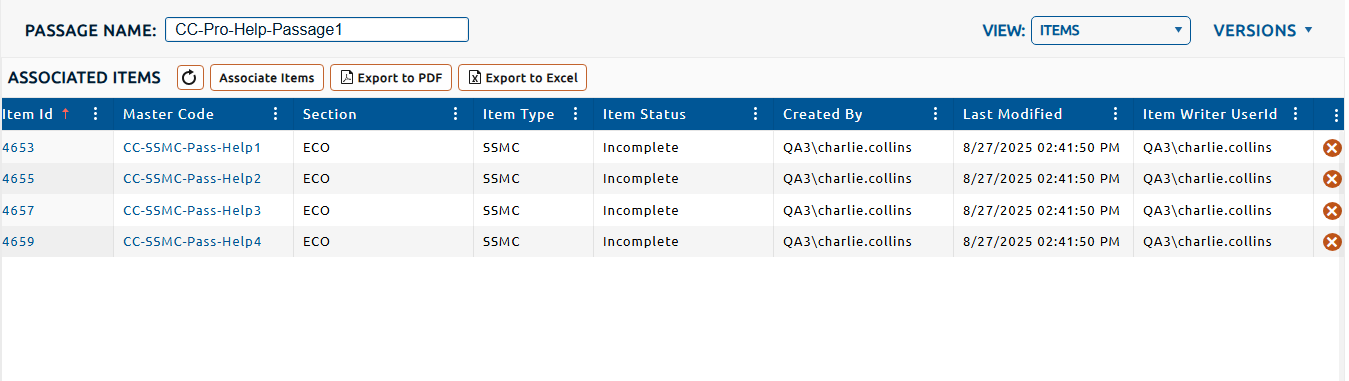
8. The items that have been successfully associated will be added to the Associated Items table.
Note:Click here for information on associating an item to a passage when creating an item.