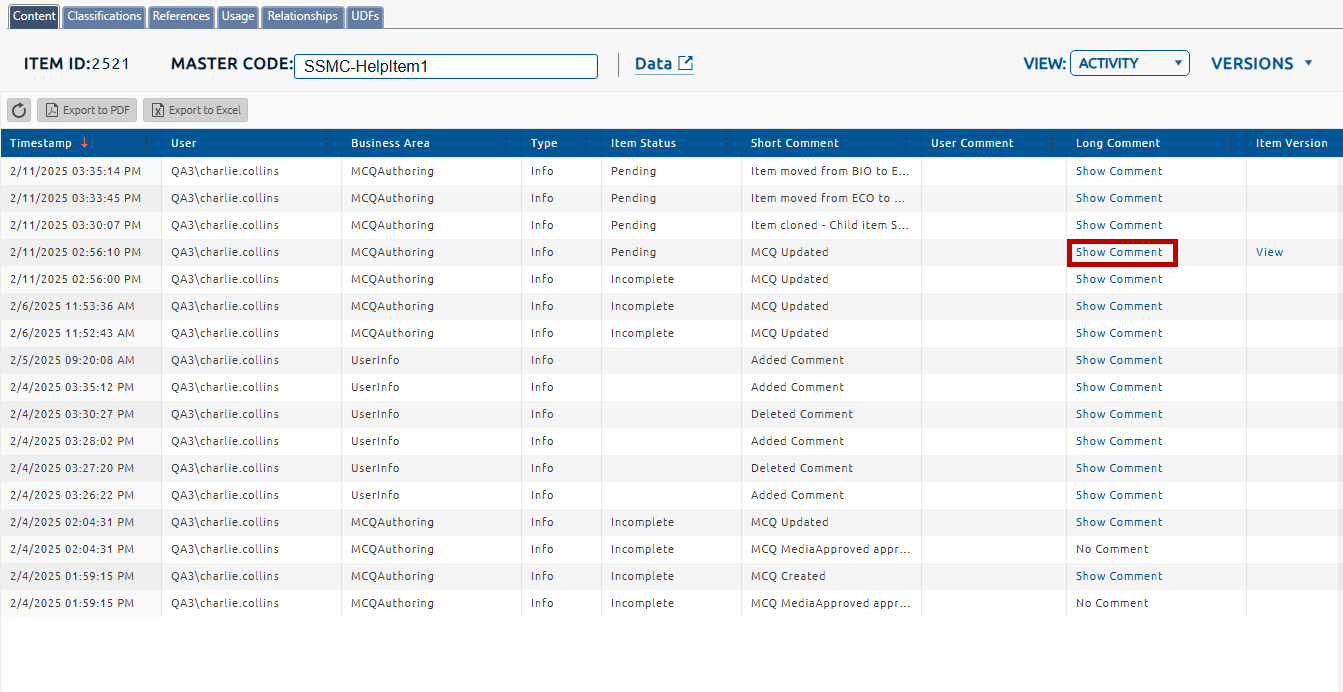
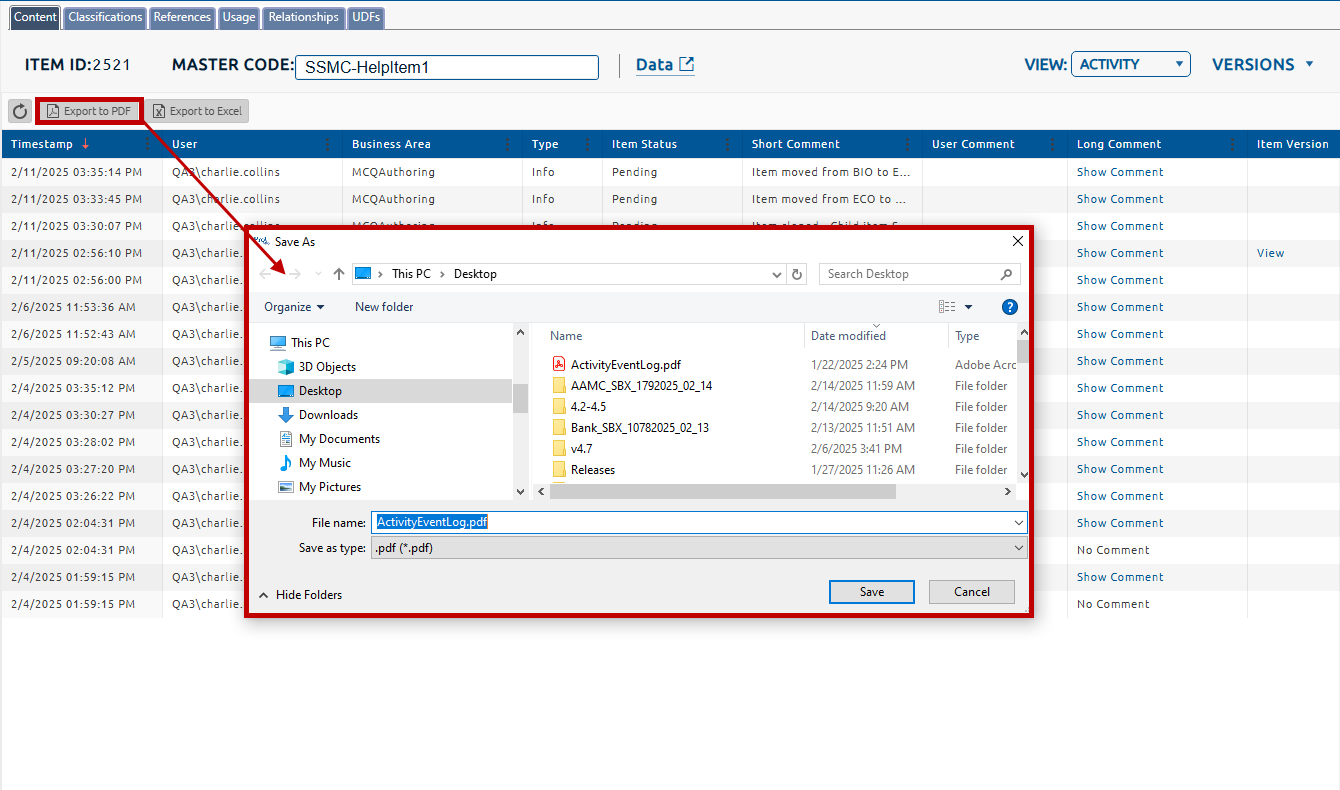
Whenever users perform activities on items, Pro! logs the activities in the system's Activity Log. The log contains information such as the date/time the event occurred, the username of the person who caused the event to occur (or "system," if the event occurred as a result of system activity), a short description of the type of event that occurred, etc.
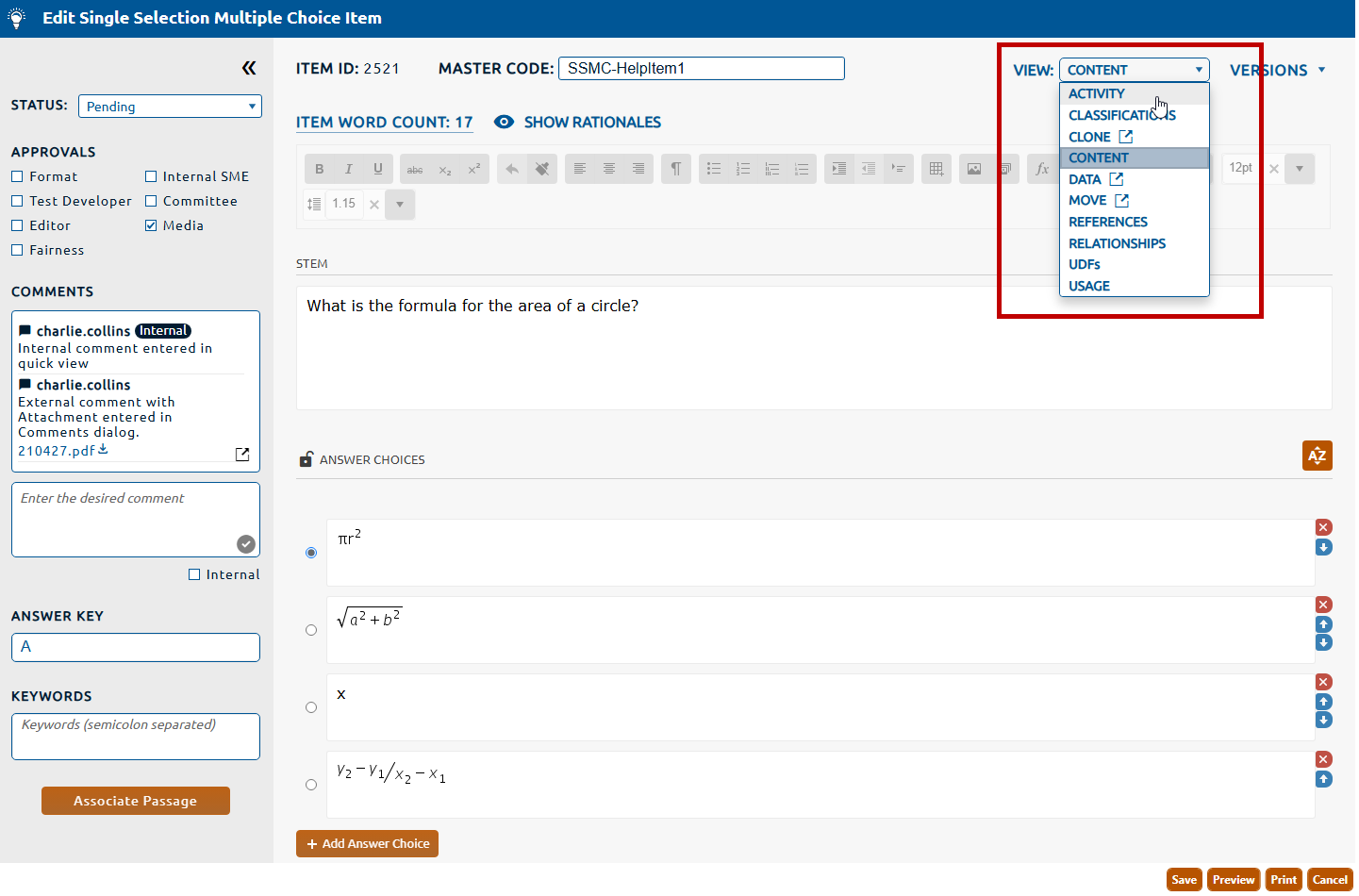
2. Select Activity from the View dropdown (highlighted in red, below).
3. A table detailing the activity for this item will be displayed. The columns are sortable by clicking on the column header. Clicking the ellipsis in the column header provides filtering and column display options.
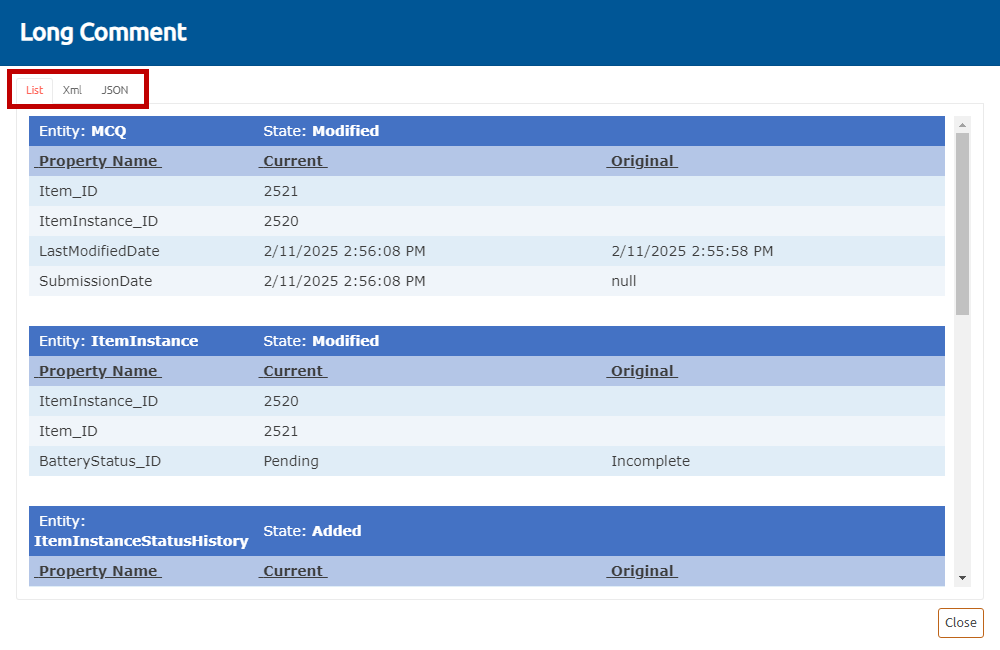
4. To view the long comment for an activity event, click the Show Comment link (highlighted in red, above). The Long Comment dialog will appear. The tabs (highlighted in red, below) allow the comment to be viewed in List (selected below), Xml or JSON format.
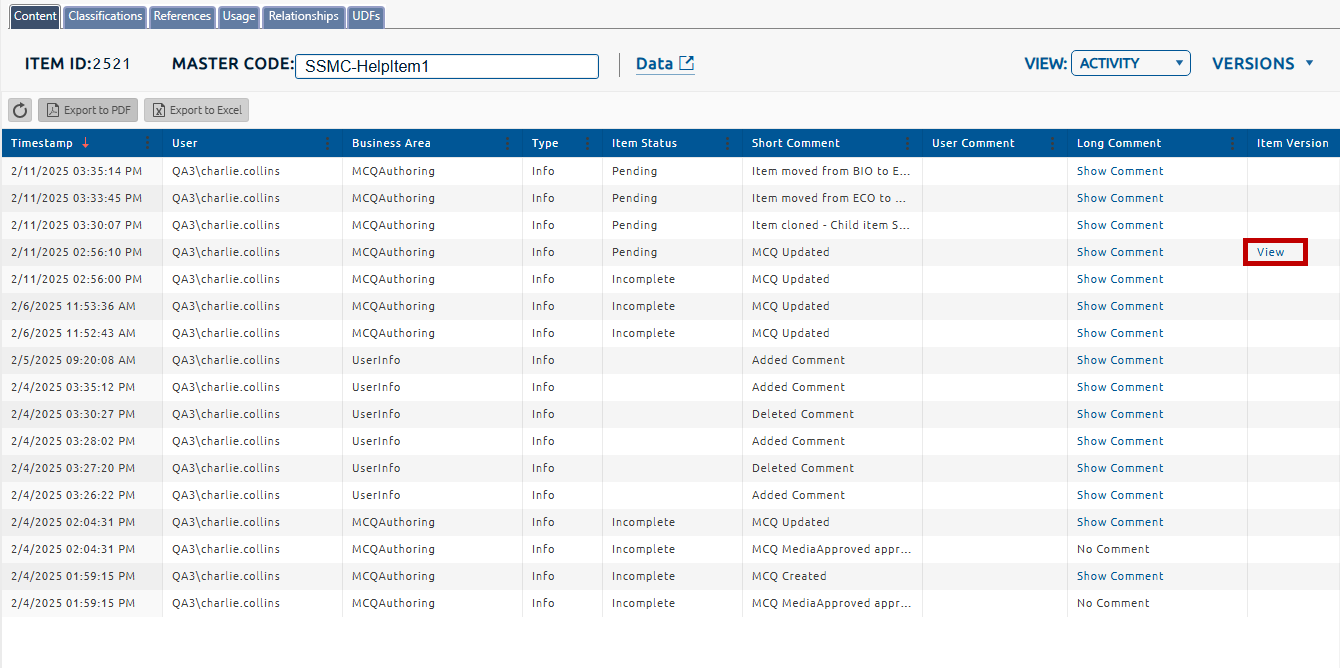
5. If the activity performed created a snapshot of the item, the snapshot can viewed by clicking the View link (highlighted in red, below).
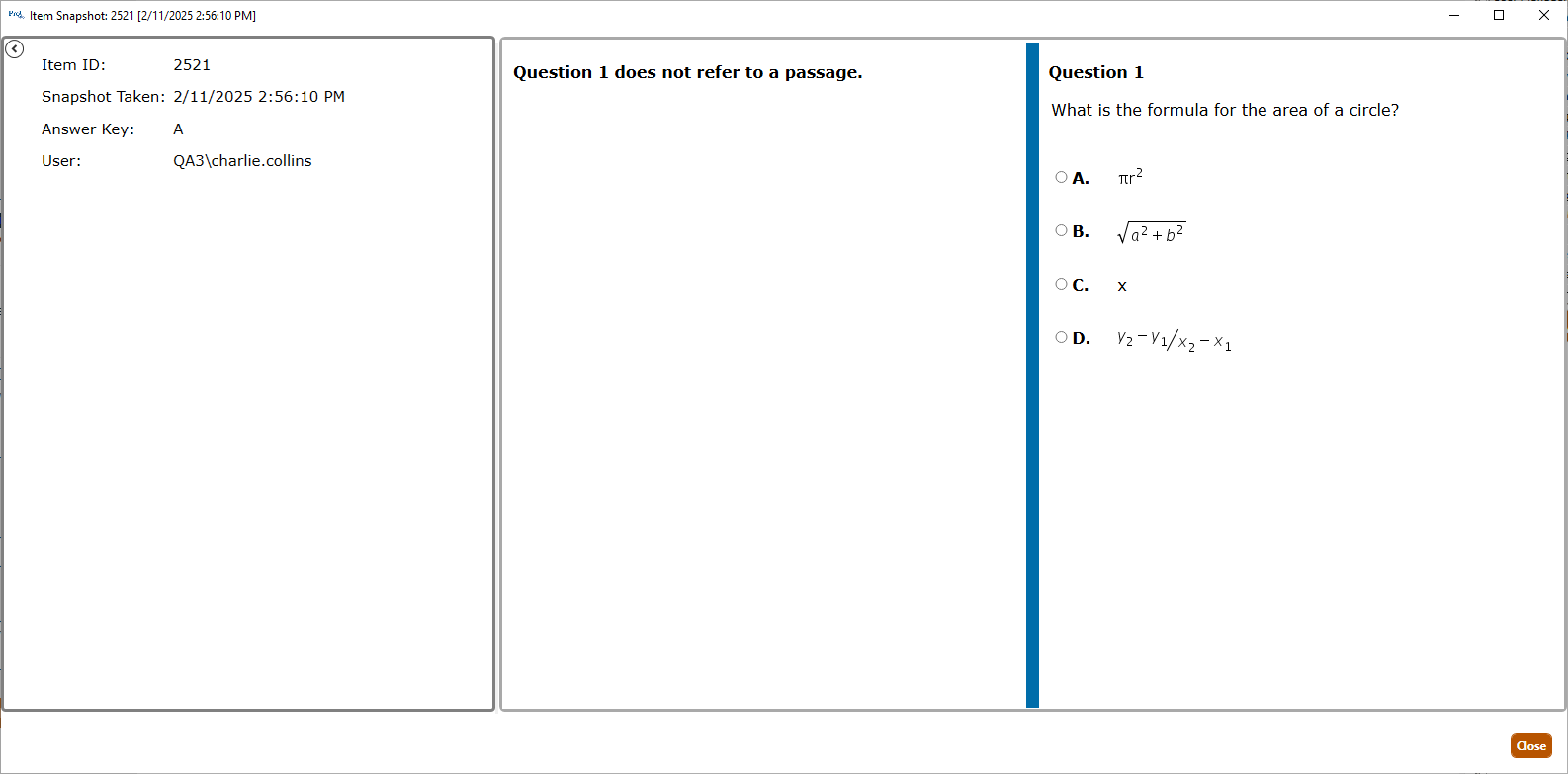
6. The Item Snapshot dialog will appear displaying the snapshot taken upon save of the activity.
7. The activity table can be exported to either a PDF or an Excel file. Clicking the Export to PDF or Export to Excel button will open the Save As dialog. A file can then be saved to a locally selected drive location.