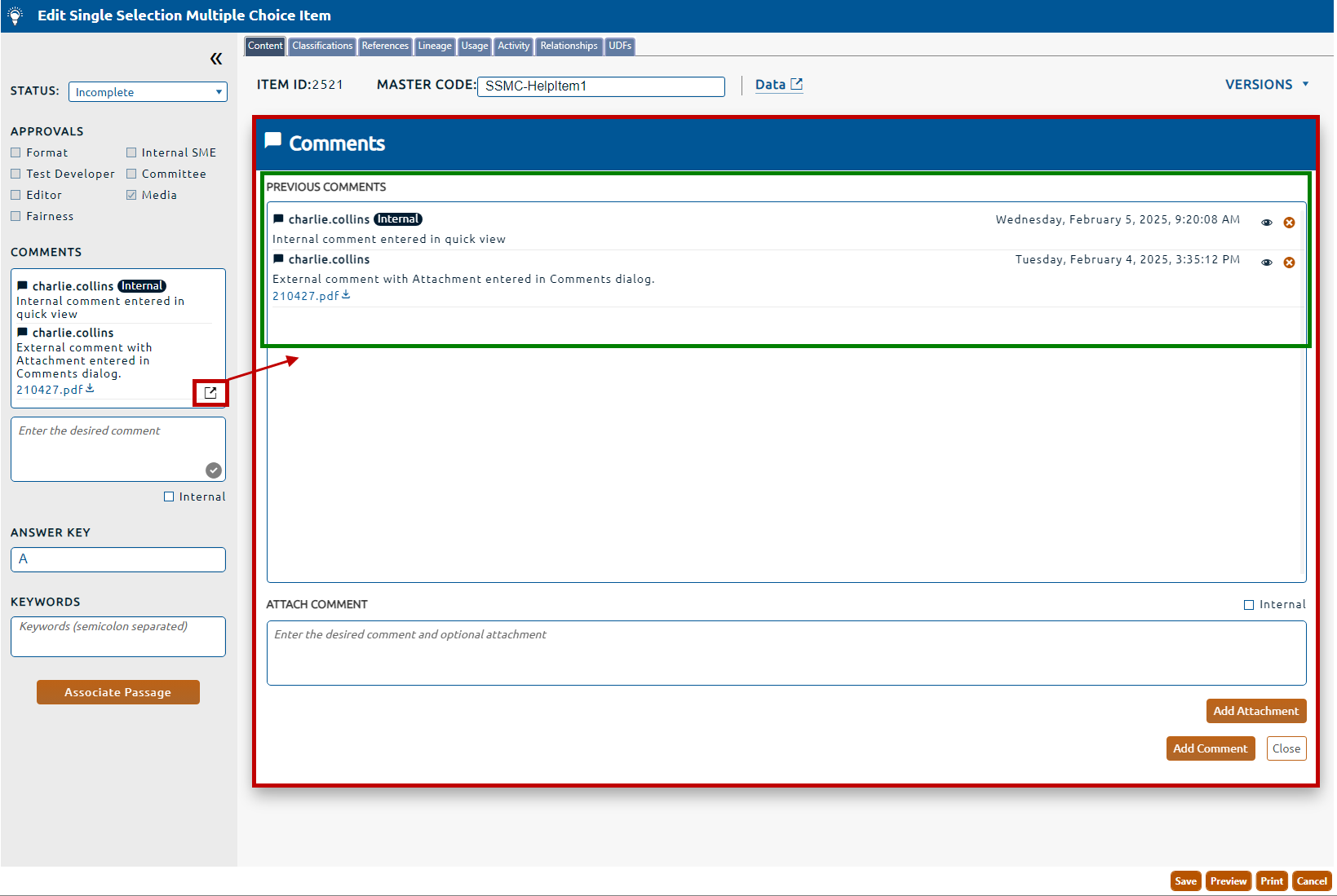
2. The left pane of the page contains the Quick View of Comments, select the comments dialog icon to open the Comments dialog (highlighted in red, below)
3. A list of all the item's comments will be displayed in the Previous Comments field (highlighted in green, above).
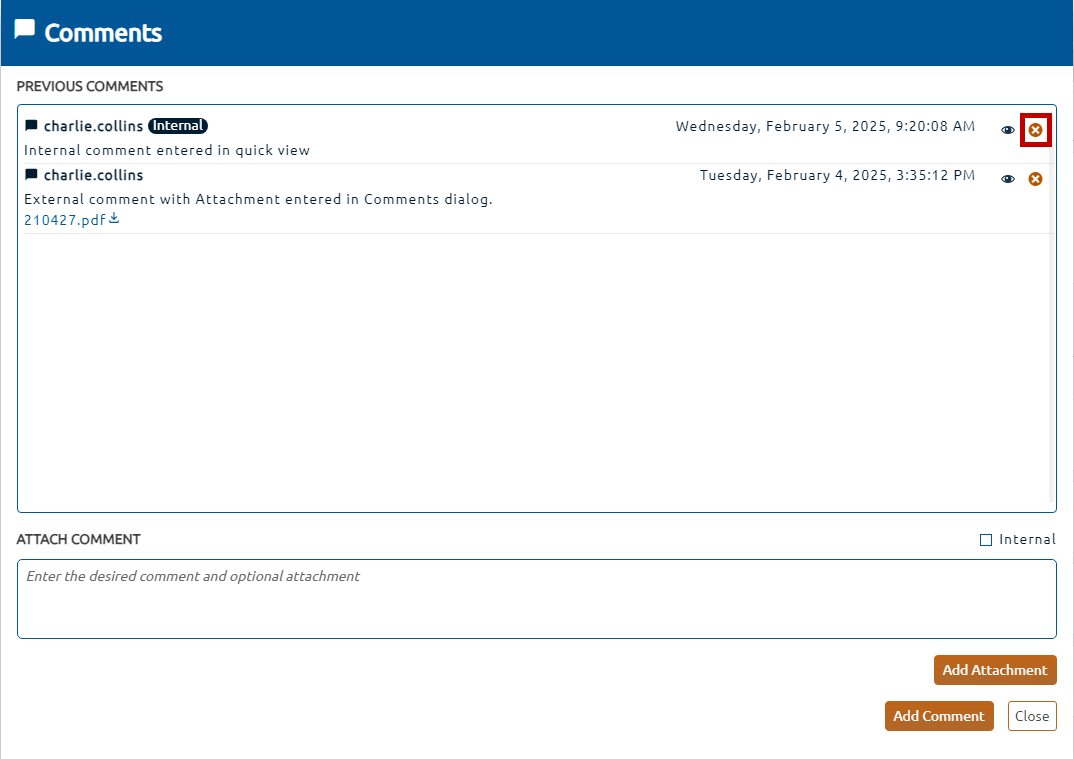
4. To delete an existing comment, click the X icon next to the comment (highlighted in red, below), then follow all confirmation prompts.
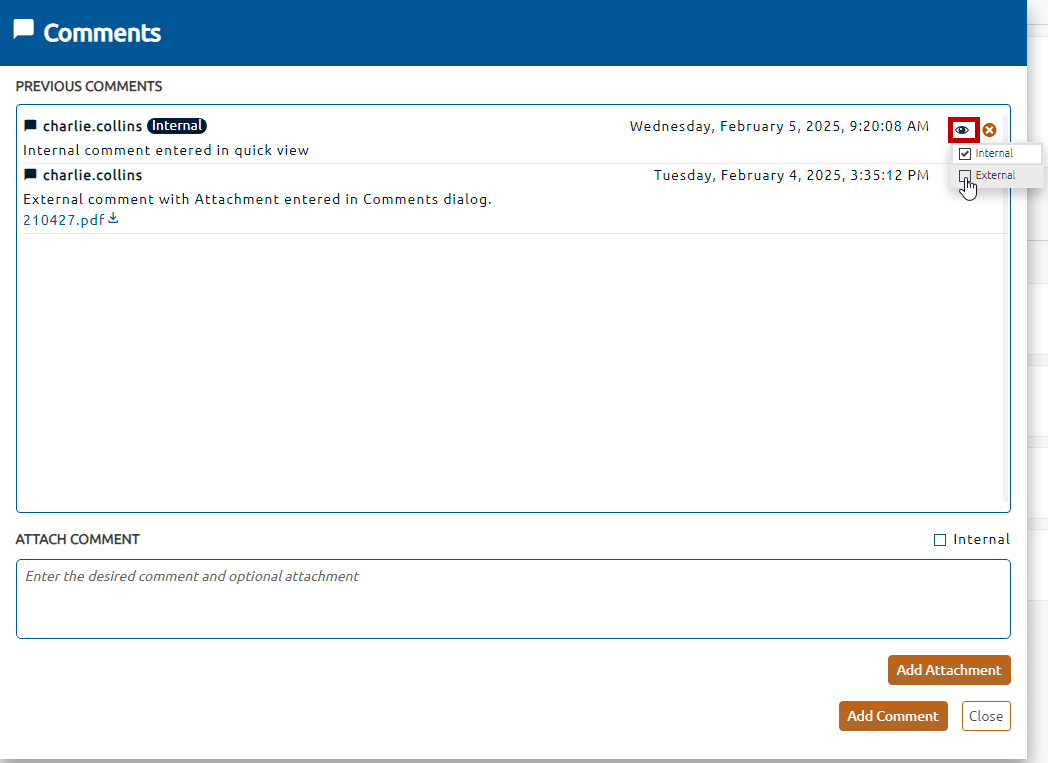
4. To change the comment's visibility, click the view dropdown (highlighted in red, below) and select Internal or External from the list.
5. If the comment contains an attachment, clicking the attachment hyperlink will permit the file to be saved to a locally mapped drive.
6. Any comment edits are immediately persisted. The Comments dialog can be dismissed with the Close button.