Editing references for a passage
|
|
Notes: Click here for full instructions on assigning references to a passage.
|
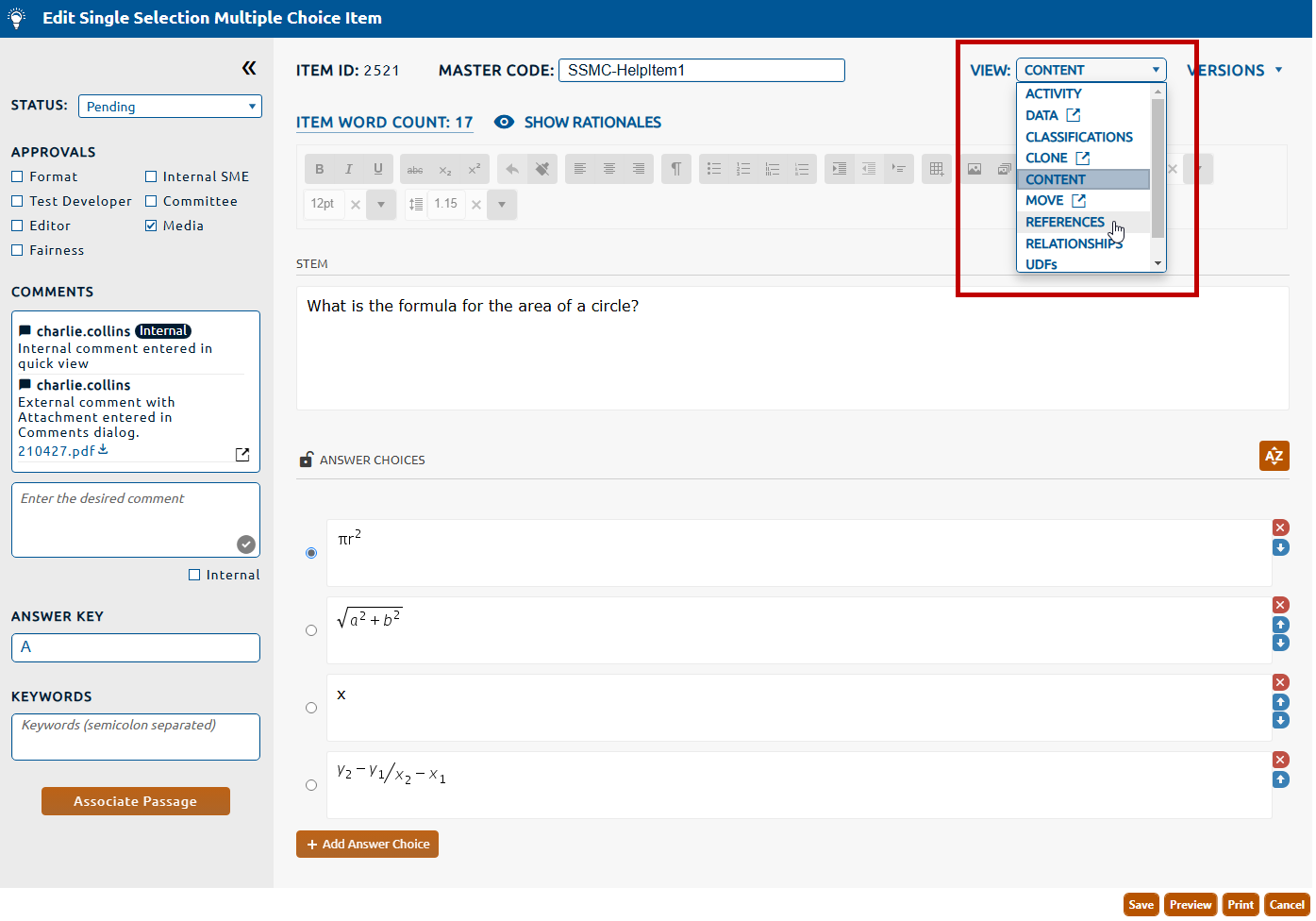
1. Select References from the View dropdown (highlighted in red, below).
To edit an assigned approved reference:
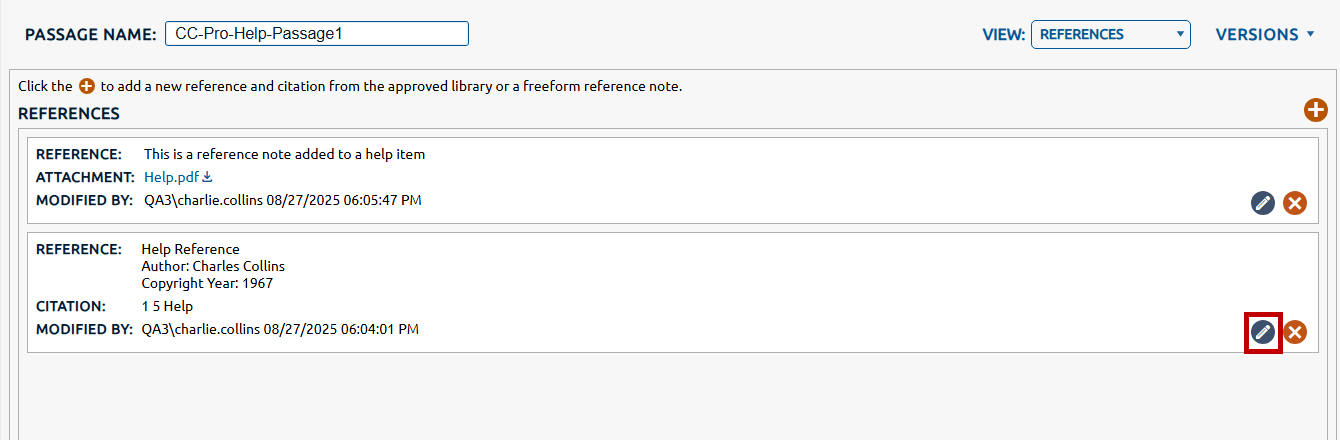
1. Click the Edit icon (highlighted in red, below) for the approved reference to be edited..
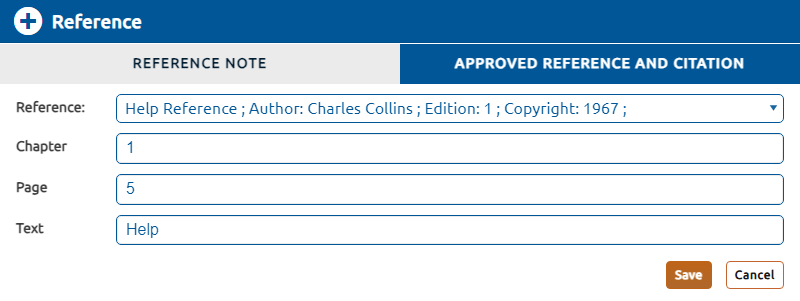
2. The Reference dialog will be opened with the Approved Reference and Citation values populated.
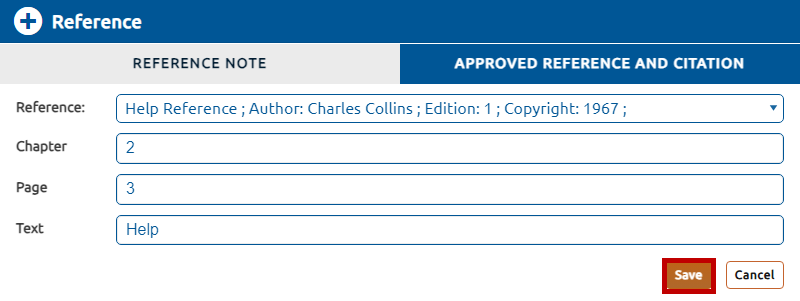
3. A different reference can be selected from the Reference dropdown or the citation values can be changed as in the example below.
4. Click the Save button to persist the changes.
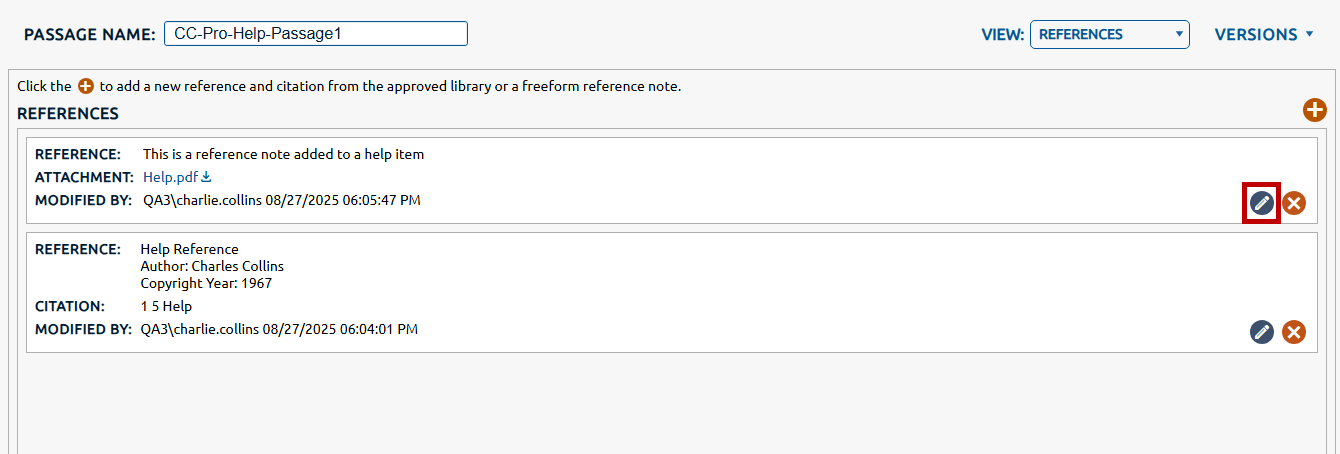
1. Click the Edit icon (highlighted in red, below) for the reference note to be edited.
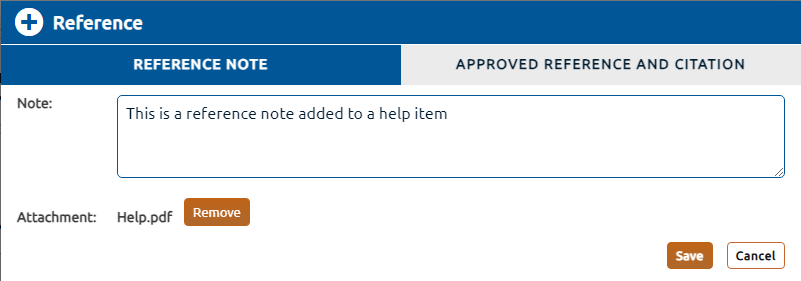
2. The Reference dialog will be opened with the Approved Reference and Citation values populated.
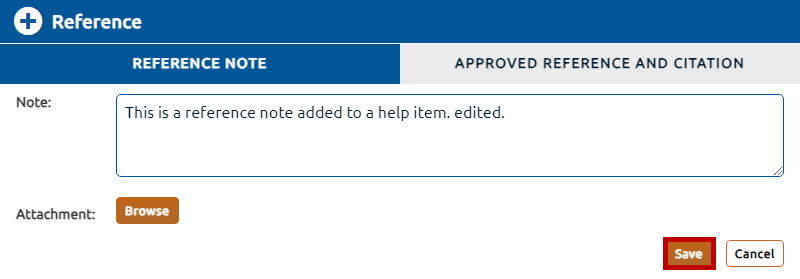
3. The Note content can be edited and the Attachment can be removed (and replaced) as in the example below.
4. Click the Save button to persist the changes.
To delete a reference:
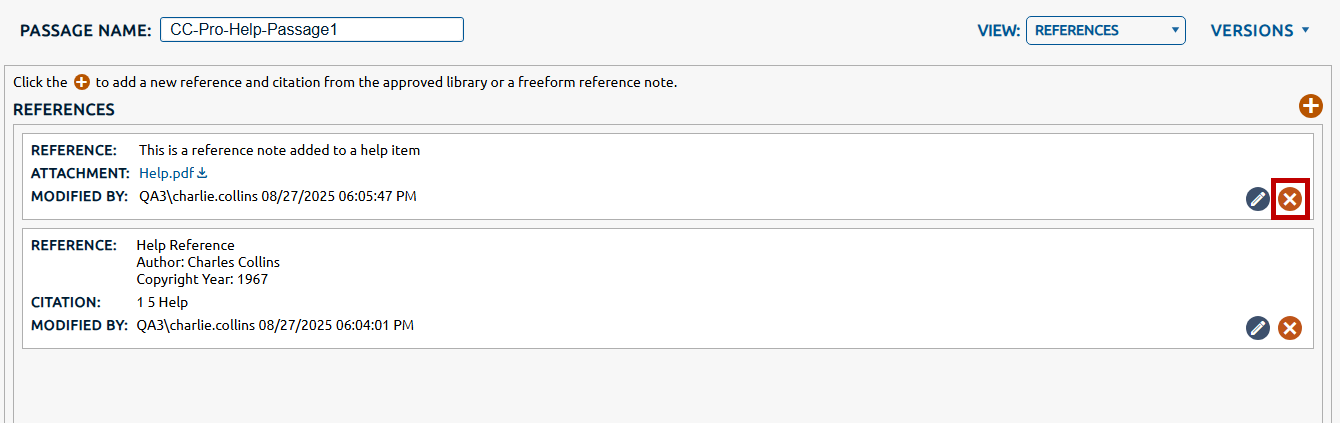
1. Click the Delete icon (highlighted in red, below) for the reference note to be removed.
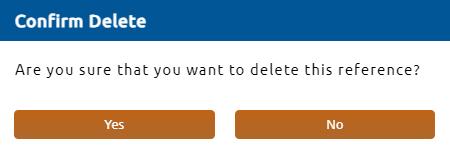
2. The Confirm Delete dialog will be opened, click Yes to persist the removal of the reference from the passage.
|
|
Note: Click here for information on creating and managing references in the reference library.
|