A new snapshot is created and maintained every time the passage content is changed and saved. It is possible to revert the content of the passage back to any of these previously created versions, provided the passage is not locked.
To revert a passage's content to a prior saved version:
1. Open a passage.
2. The Content page will open by default.
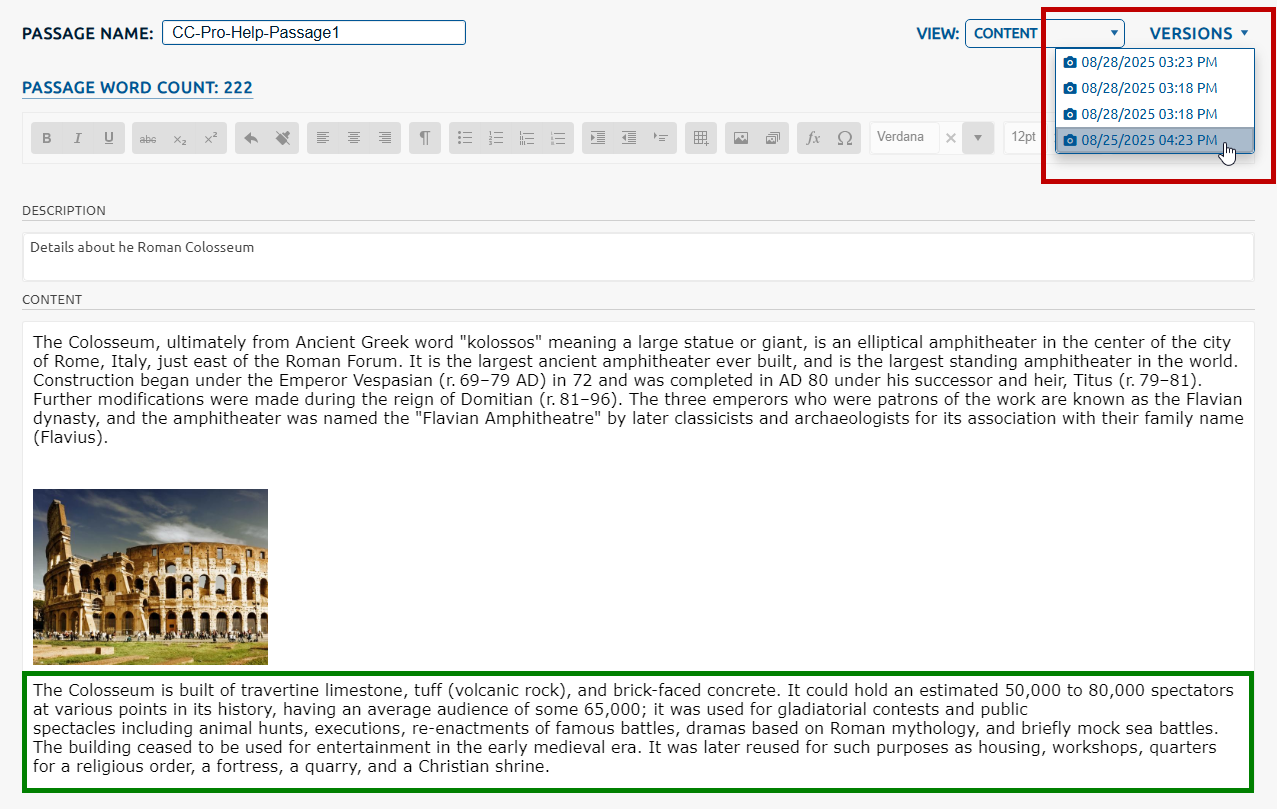
3. Select the desired timestamp hyperlink from the Versions dropdown (highlighted below) to view the passage content as it was saved at that date and time.
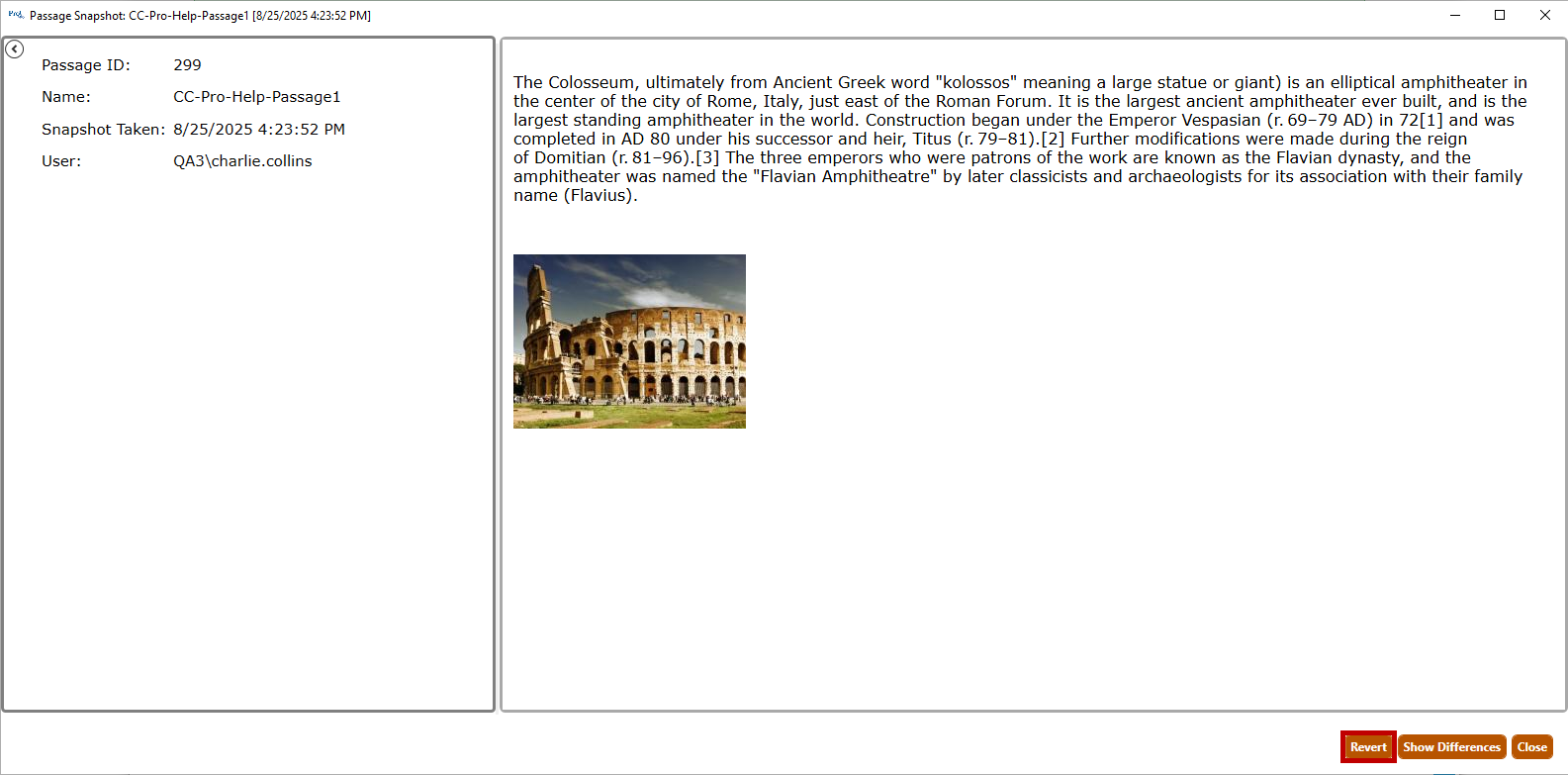
4. The Passage Snapshot window is presented and displays the selected passage snapshot/version (8/25/2025 at 4:23 PM). Notice this snapshot was created prior to the text highlighted in green above, being added.
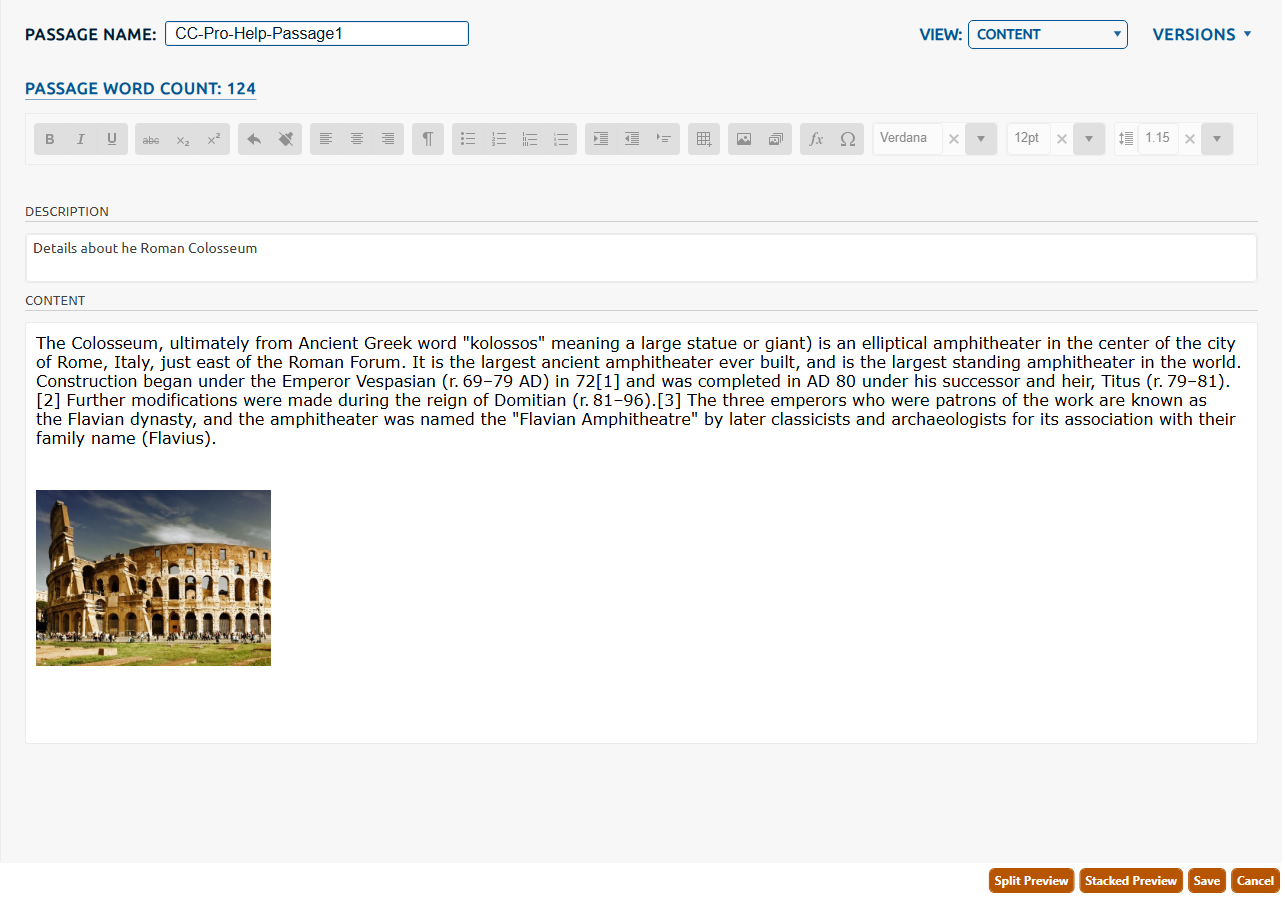
5. Clicking the Revert button (highlighted in red, above), the passage's content will be reverted back to the content as it was at the time of the selected snapshot. The restored content can be edited, if desired.
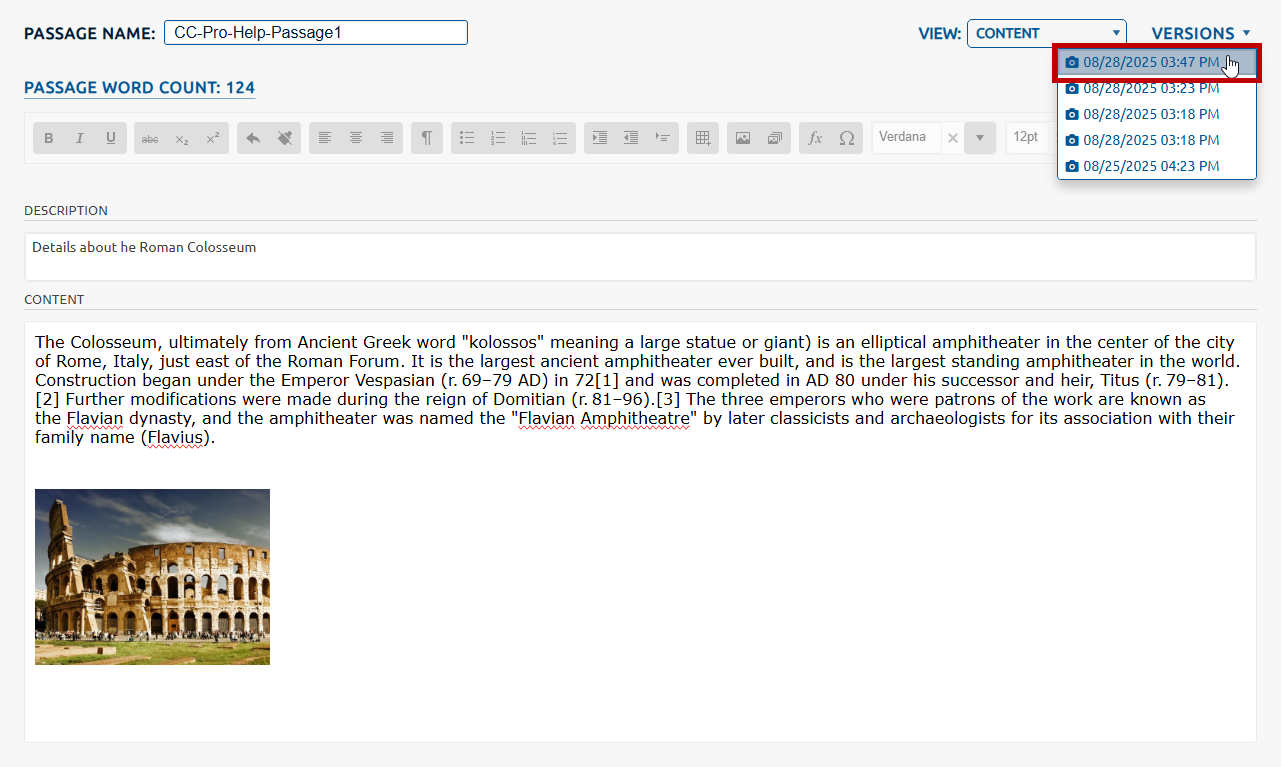
6. Clicking Save will create a new snapshot of the reverted content (plus any edits).