The Pro! editor allows the user to insert variables into the content of a Direction or Score Report item.
To insert a variable:
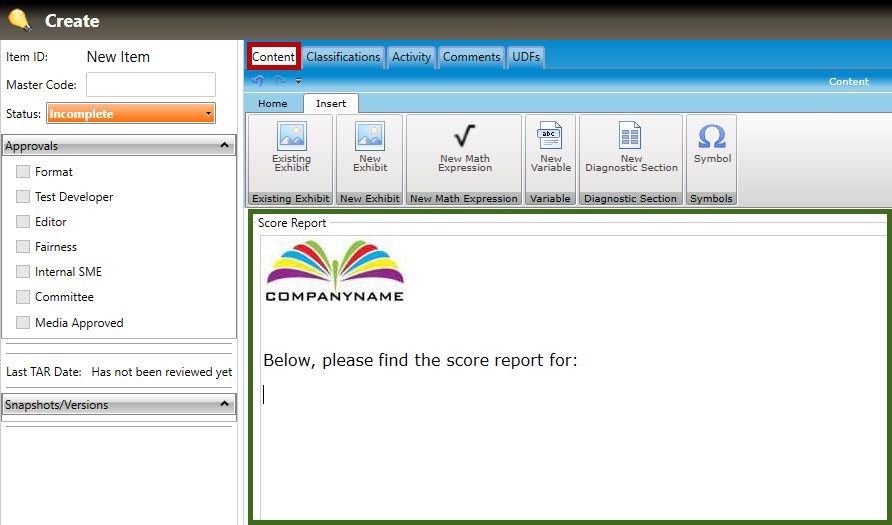
1. In the example below, the user has begun creating the score report by inserting a company logo and some text (highlighted in green, below):
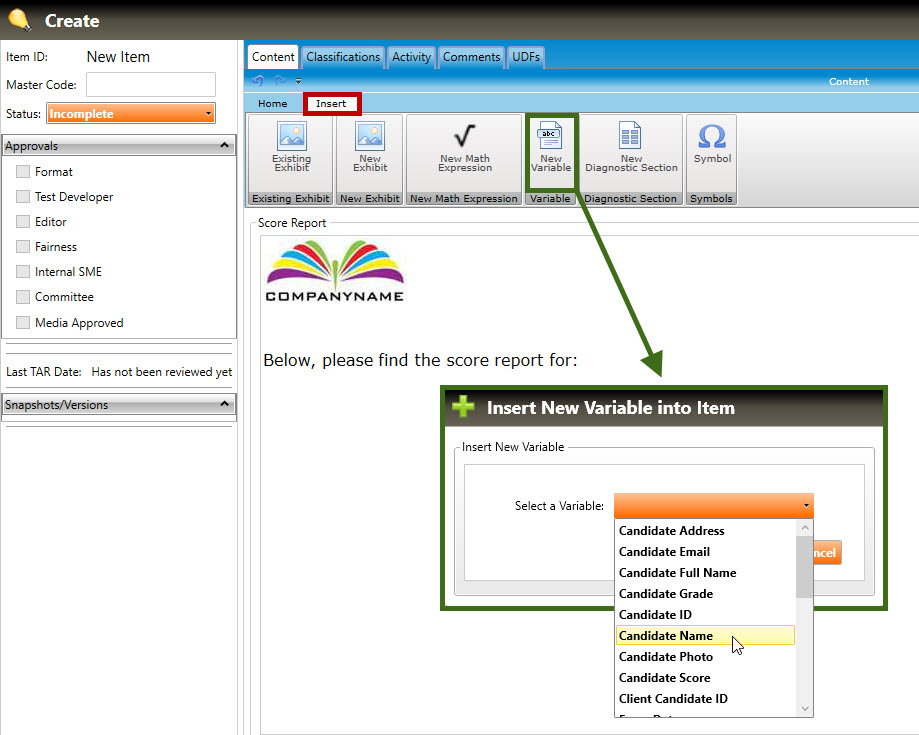
2. To insert information such as the candidate name, ID number, exam date, etc., (called variables), first select the Insert tab (highlighted in red, below). Click the cursor where you want the variable to appear. Click the New Variable button to open the Insert New Variable into Item pop-up window (highlighted in green, below).
3. Select the desired variable from the Select a Variable drop-down list, then click the OK button. In the example above, the user is inserting the Candidate Name variable into the score report.
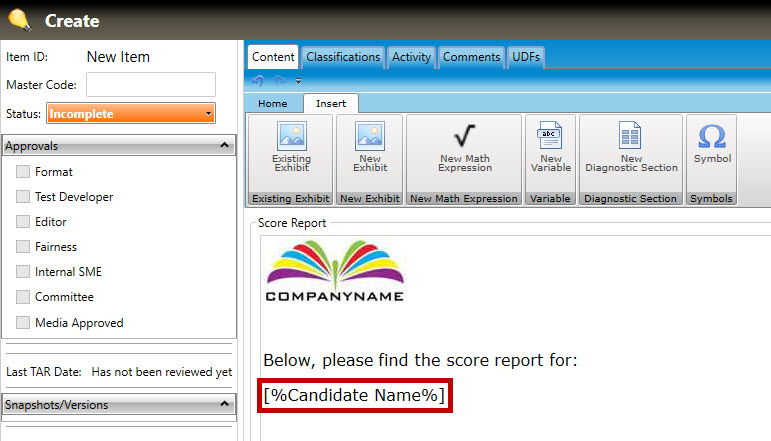
4. After clicking the OK button, coding for that variable will appear in the score report. In the example below, coding for Candidate Name has been inserted (highlighted in red, below).