The Pro! editor allows the user to insert images and, audio/video clips (called exhibits), symbols, and/or math equations.
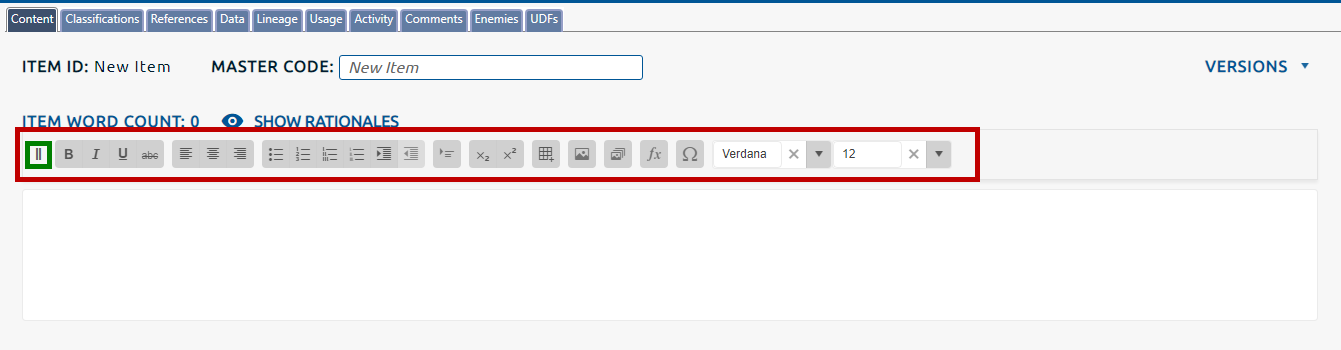
Inserting content is accomplished using the content areas formatting bar. The formatting bar will become available when clicking in a content area within an HTML item (highlighted in red, below).
The bar can be re-positioned on the page by grabbing the handle (highlighted in green, above) and dragging it to the desired location.
Inserting exhibits
Note: All images and audio/video clips (called exhibits) are handled by the Pro! exhibit management environment, which allows you to import and manage images (.bmp, .jpeg, .jpg, and .png) and audio/video clips (.mpeg, .mpg, .wmv, .mp4, and .avi). These exhibits can then be used in the stem, stimulus, and answer choices of items.
To insert an exhibit into an item:
Click your cursor where you wish to insert the exhibit.
Insert an existing exhibit.
Click the Existing Exhibit button:
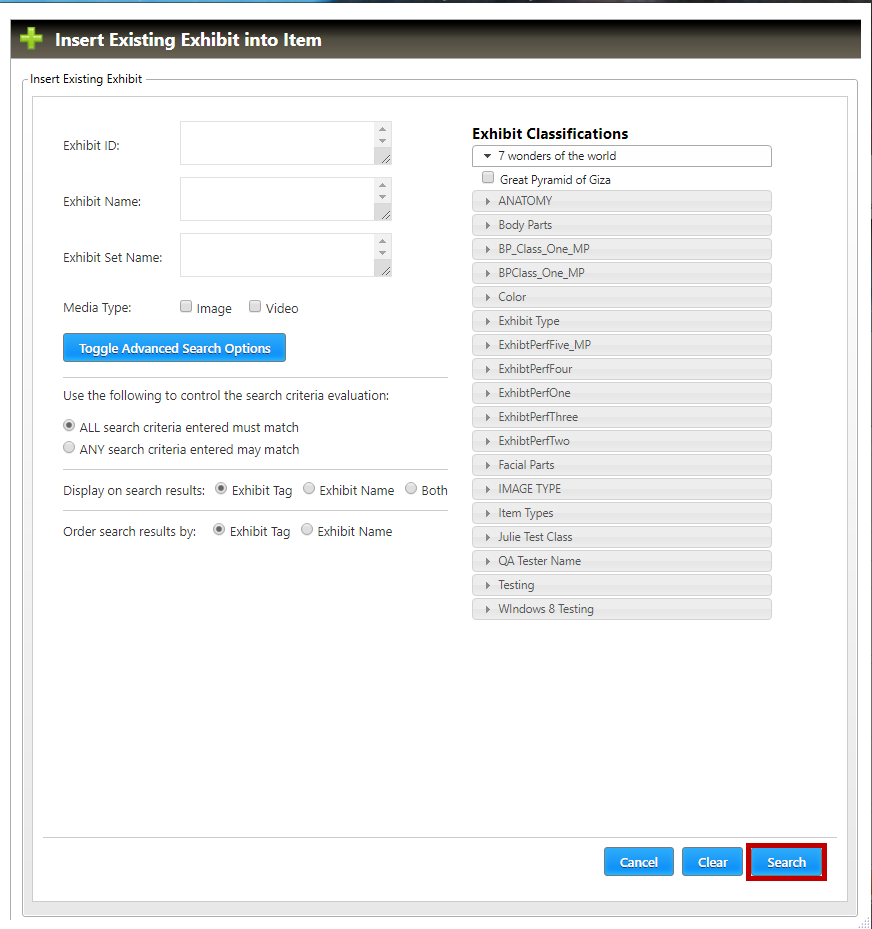
The Insert Existing Exhibit into Item window will appear (shown below). Use the criteria to narrow the search for the desired exhibit, then click the Search button (highlighted in red, below).
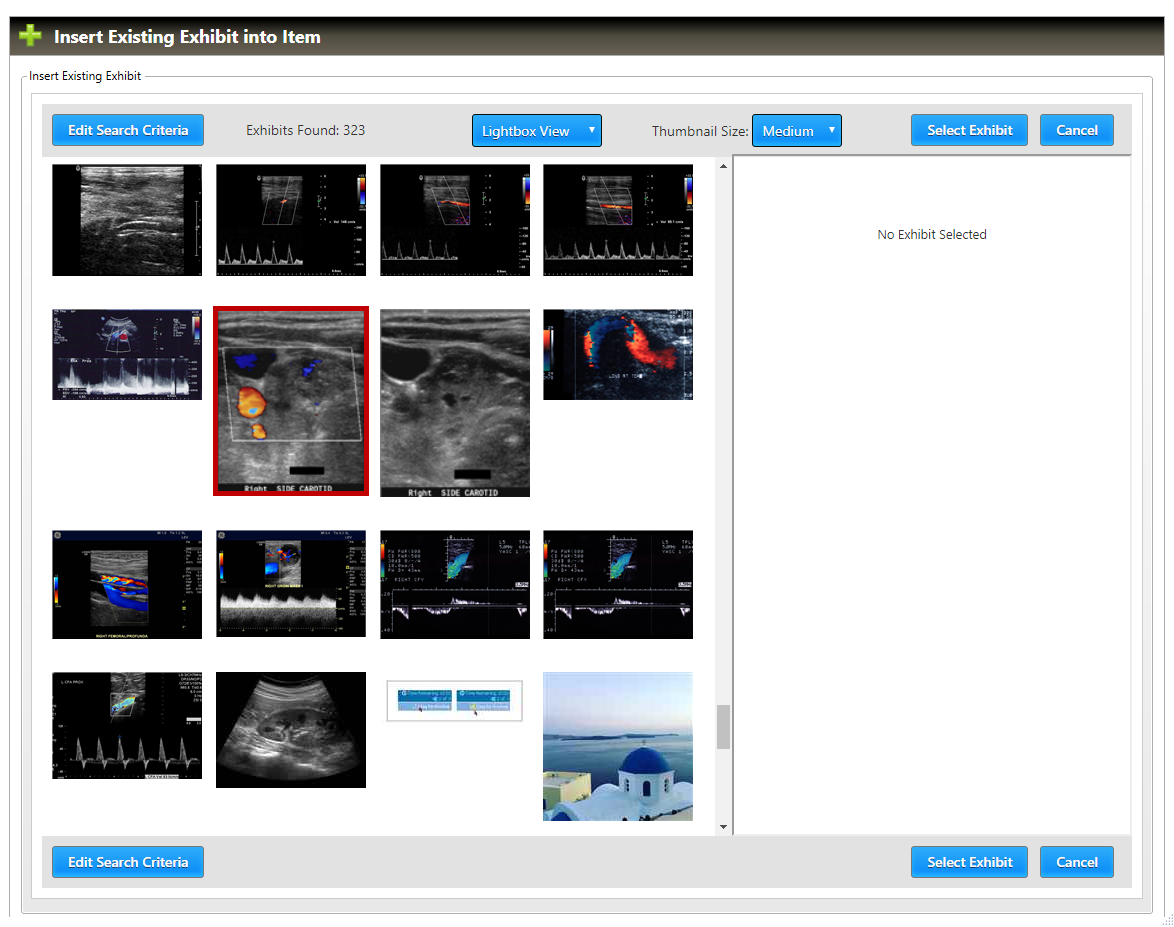
The results of the search will be returned as a list of exhibit icons in the left pane of the Insert Existing Exhibit into Item window. Click the icon for the desired exhibit (highlighted in red, below).
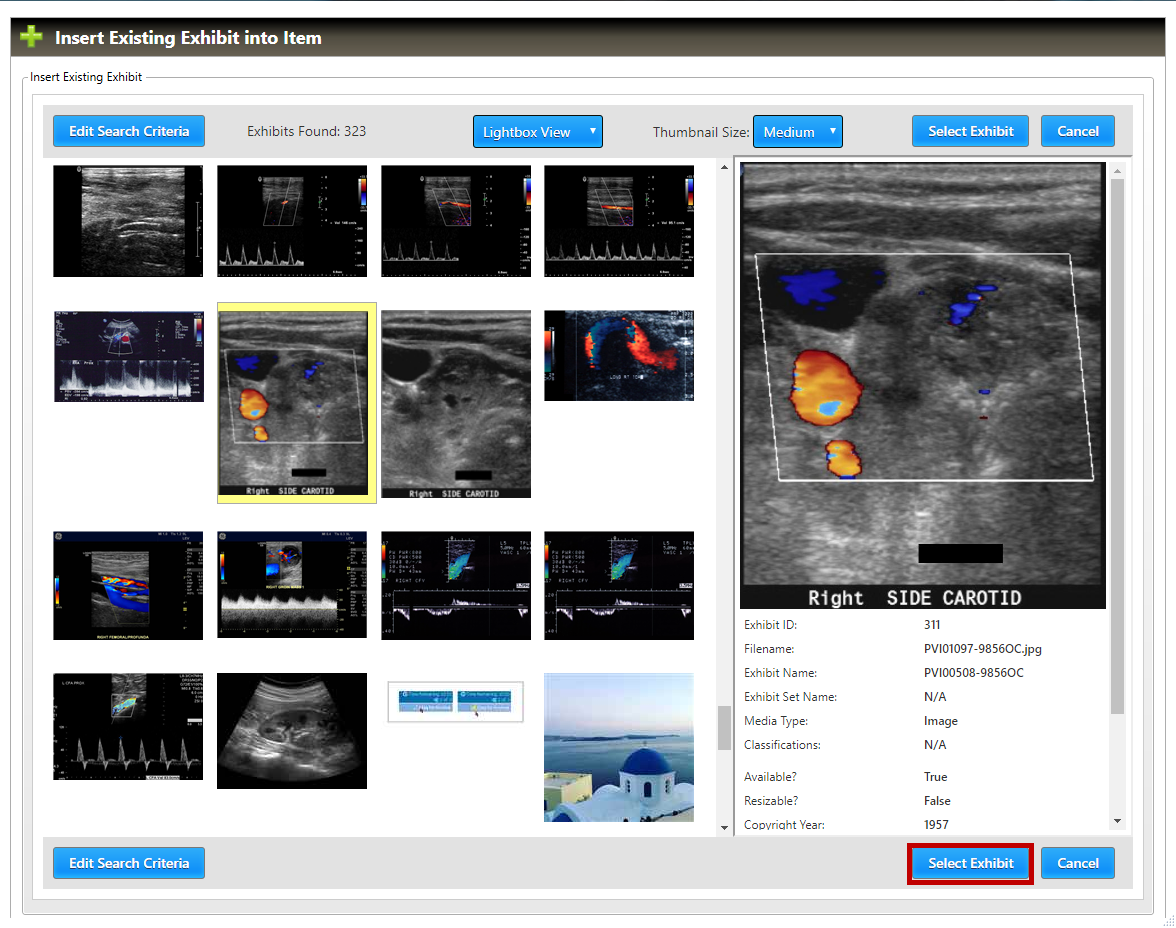
The selected exhibit and its details will populate the right pane of the Insert Existing Exhibit into Item window. Clicking the Select Exhibit button will place the exhibit into the item.
3. Insert a new exhibit.
Click the New Exhibit button:
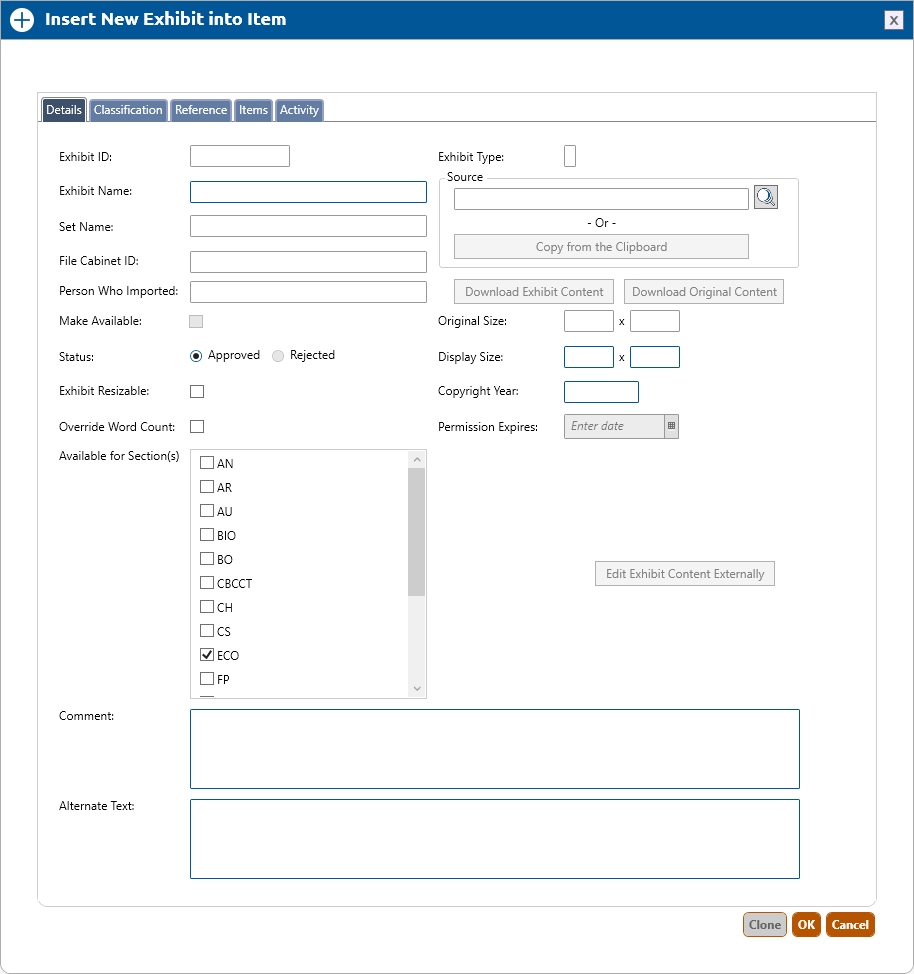
The Insert New Exhibit into Item window will appear (shown below).
Click the OK button to insert the new exhibit into the item.
Inserting a symbol
To insert a symbol into an item:
Click your cursor where you wish to insert the symbol.
Click the Symbol button:
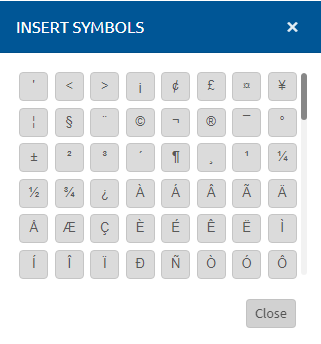
The Insert Symbol dialog box will appear.
Click the desired symbol(s) to insert it into the item.
Click the Close button to close the dialog box.
Inserting an expression
To insert an expression into an item:
Click your cursor where you wish to insert the expression.
Click the Expression button:
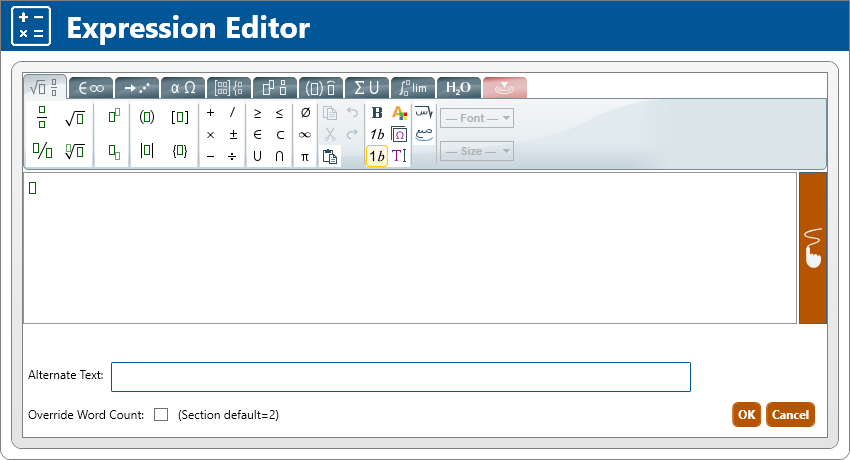
The Expression Editor dialog box will appear.
4. Create the desired expression in the editor using the available editor options and keyboard entries.
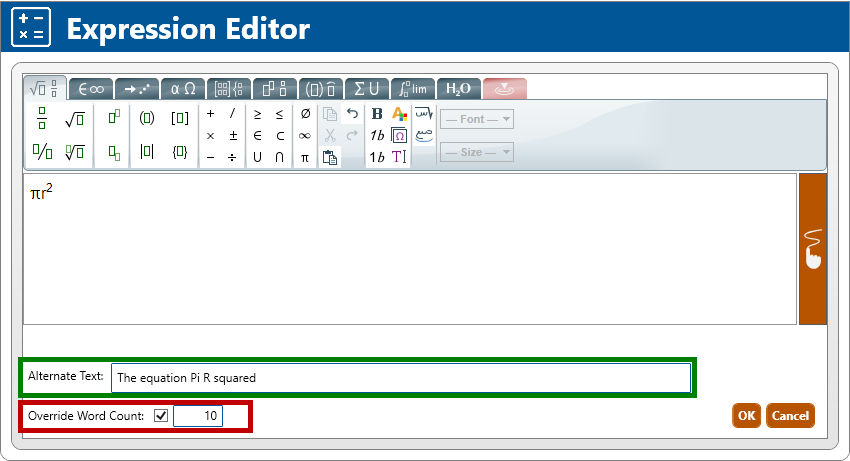
5. Provide Alternate Text for the expression (as highlighted in green below). This text will be read to the test taker to describe the expression when taking an ADA exam.
6. To override the section default word count for the expression, click Override Word Count checkbox and provide a custom word count value for the expression (as highlighted in red above).
7. Click OK button to close the dialog box. The math expression will be inserted.